Google BigQuery
Google BigQuery is a fully managed, serverless data warehouse that enables super-fast SQL queries using the processing power of Google's infrastructure, providing scalable analytics and machine learning capabilities for businesses of all sizes.

Power end-to-end data operations for your Google BigQuery database with Nexla. Our bi-directional Google BigQuery connector makes it easy to ingest, transform, and validate data from Google BigQuery and to deliver data to any Google BigQuery location – all with no coding required. Nexla organizes data from raw database queries or tables into ready-to-use data products you can manage and move at scale. With comprehensive monitoring, lineage tracking, and robust access controls, Nexla keeps your Google BigQuery workflows fast, secure, and fully governed.
Features
Type: Database
- Flexible ETL/ELT/CDC/Replication: Seamlessly read and write data using any integration style that fits your needs
- Real-time data change capture for always up-to-date insights and continuous scalability
- No-code database connectivity as source or destination, with automatic data product creation
- Data as a Service: Instantly deliver secure, high-performance API access to your database data
Authenticate
This section provides step-by-step instructions for creating a new Google BigQuery credential that will allow Nexla to authenticate to your Google BigQuery account.
Prerequisites
During data movement to/from BigQuery, Nexla stages data in temporary GCS and BigQuery locations within your Google Cloud project. The account used to create a BigQuery credential in Nexla must have the following IAM roles assigned at the project level:
storage.objects.create– Allows Nexla to write staged data files into GCS bucketsstorage.objects.get,storage.objects.list– Allows Nexla to read staged data files and list bucket contentsstorage.buckets.create– Allows Nexla to automatically create a temporary GCS staging bucket. Not required if you provide an existing bucket via the GCS Staging Location advanced credential setting (see Advanced Settings below).bigquery.datasets.create– Allows Nexla to automatically create a temporary dataset to store intermediate query results. Not required if you provide an existing dataset via the Staging Dataset advanced credential setting (see Advanced Settings below).
For more information about IAM roles and how to assign them within GCP, see the Google Cloud documentation.
Create a BigQuery Credential
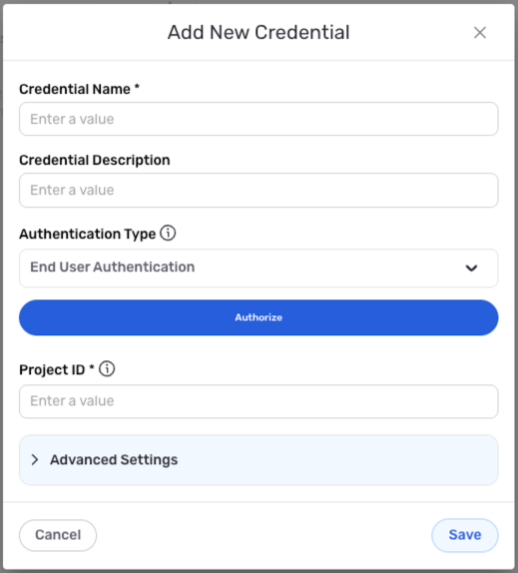
- To create a new Google BigQuery credential, after selecting the data source/destination type, click the Add Credential tile to open the Add New Credential overlay.
New Credential Overlay – Google BigQuery
Credential Name & Description
-
Enter a name for the credential in the Credential Name field and a short, meaningful description in the Credential Description field.
Resource DescriptionsResource descriptions should provide information about the resource purpose, data freshness, etc. that can help the owner and other users efficiently understand and utilize the resource.
Account Access
-
Select the authentication method that will be used to connect to the BigQuery account from the Authentication Type pulldown menu, and follow the corresponding instructions in the box below to configure associated credential settings.
Nexla recommends using the System User Authentication method to connect to your BigQuery account. This method is best-suited for accessing your own data and is tied to the service account instead of an individual user account.
Configure Authentication Settings
- System User Authentication
- End-User Authentication
Authenticate with a Google service account
Obtain the service account credentials in JSON format.
To download the credentials file from the Google Cloud console, navigate to IAM & Admin > Service Accounts, and select the service account. Select the Keys tab; then, click Add key, and select Create new key. The JSON credentials file will be downloaded to your local machine.
Click the Choose Credentials File button below the authentication method menu, and select & upload the service account credentials JSON file.
Authenticate with your Google user account
Click the Authorize button below the authentication method menu; then, select the Google account that will be used to access BigQuery tables, and click Allow to grant Nexla access to the account.
Enter the ID of the BigQuery project that will be accessed with this credential in the Project ID field.
Advanced Settings
For Google BigQuery credentials, advanced settings are available to further refine the data staging process when Nexla accesses the BigQuery account. These settings are optional and can be configured as needed.
- To access advanced settings for the credential, expand the Advanced Settings section at the bottom of the overlay. Instructions for configuring each available setting are provided in the box below.
Advanced Credential Settings
Google BigQuery
- GCS Staging Location
- Staging Dataset
Before moving data to/from BigQuery, Nexla stages data in a temporary Google Cloud Storage (GCS) bucket so that it can be read efficiently.
By default, Nexla automatically creates this temporary GCS bucket, which requires the storage.buckets.create permission on the credential's account. If you prefer not to grant this permission, you can pre-create a GCS bucket and point Nexla to it instead.
To use an existing GCS bucket for staging—and avoid granting
storage.buckets.create—enter the bucket path in the GCS Staging Location field.
When executing queries or moving data into BigQuery, Nexla creates a temporary dataset to store intermediate results before writing to the destination table.
By default, Nexla automatically creates this temporary dataset, which requires the bigquery.datasets.create permission on the credential's account. If you prefer not to grant this permission, you can pre-create a dataset and point Nexla to it instead.
To use an existing dataset for staging—and avoid granting
bigquery.datasets.create—enter the dataset ID in the Staging Dataset field. The dataset ID should be formatted asprojectname.datasetname.
Save the Credential
-
Once all of the relevant steps in the above sections have been completed, click the Save button at the bottom of the overlay to save the configured credential.
-
The newly added credential will now appear in a tile on the Authenticate screen during data source/destination creation and can be selected for use with a new data source or destination.
Use as a data source
To ingest data from a Google BigQuery location, follow the instructions in **Section 2 of Common Setup for Databases & Data Warehouses.
Use as a destination
To send data to a Google BigQuery location, follow the instructions in Section 3 of Common Setup for Databases & Data Warehouses.