SQL Automations
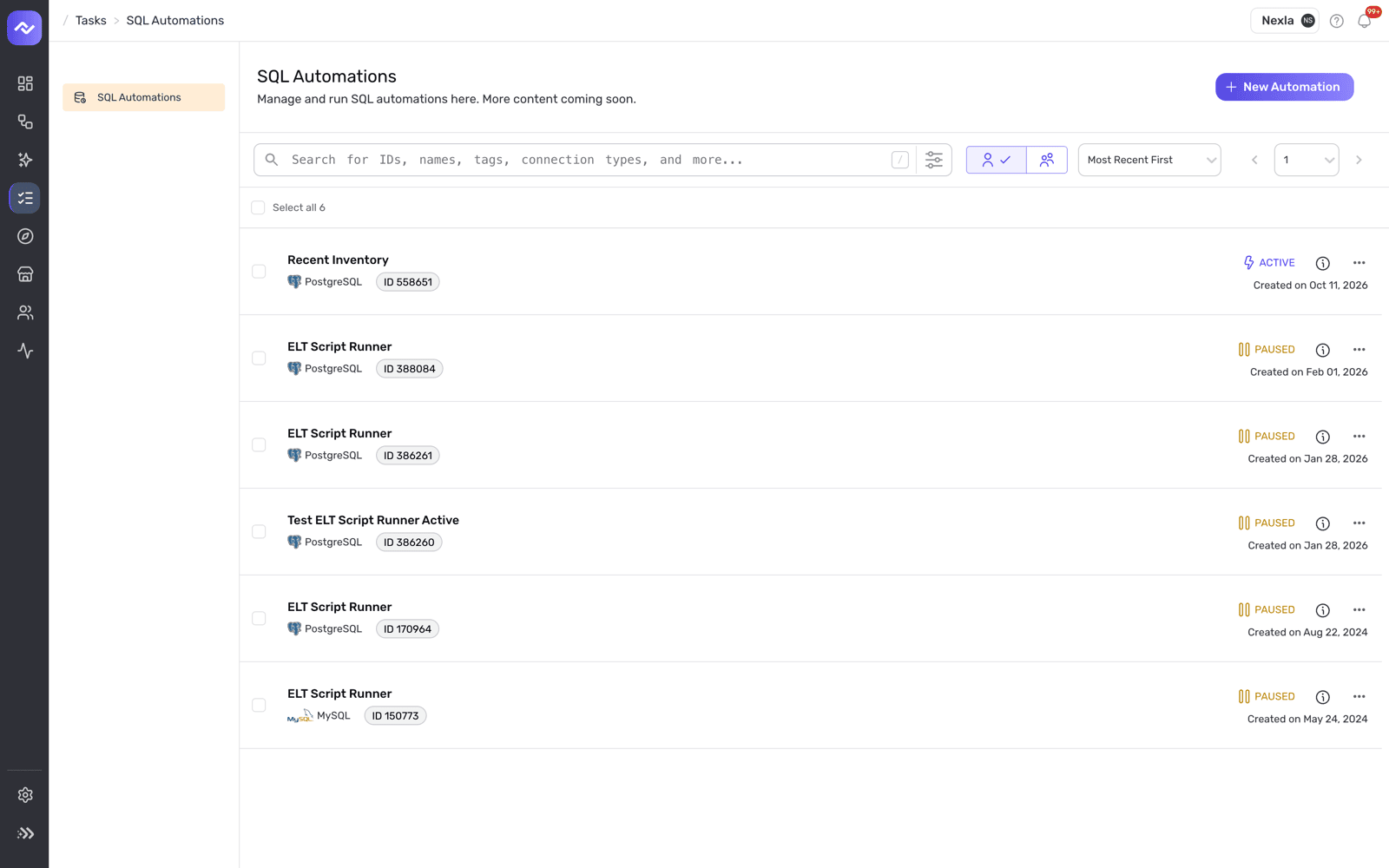
A SQL automation runs a SQL script in your own database or warehouse. Nexla doesn't read or move the data: it connects with your credential, runs the script, and keeps a log of every run. Use it for work that belongs in the warehouse itself, such as cleanup, maintenance and in-place transforms, and to tie that work to your flows. You find SQL Automations under Tasks in the left navigation.
Ways to Use It
An automation runs in one of three ways. You pick one when you set the schedule, and you can change it later.
- On a schedule. Run the script hourly, daily, weekly or monthly, like a cron job. This suits recurring maintenance: purge old rows, refresh an aggregate table, rebuild an index.
- After another job finishes. Run the script when a Nexla destination finishes writing, or when a source finishes a run. This is how you clean up or transform data right after a flow lands it, without guessing at timing.
- As the trigger for another flow. An automation is a source, so any flow set to On Source Completion can wait for it. Put the automation between a load and the next ingestion, and the chain runs end to end: load, SQL, next flow.
Each automation is a flow with one node: the script, connected to the credential it runs with. It has no Nexsets and no destination, and its flow cards show the schedule and the last run instead of record counts. SQL automations appear with your other flows in Integrate, so you can keep them in projects next to the flows they depend on.
Prerequisites
- A credential for the database -- Any database or warehouse Nexla connects to can run automations. If you don't have a credential yet, see Create a Credential.
- The right database privileges -- The user behind the credential needs the privileges your script uses:
SELECTto read, andINSERT,UPDATE,DELETEor DDL privileges to change data or tables.
Create a SQL Automation
-
In the left navigation, open Tasks, then SQL Automations. Click New Automation.
-
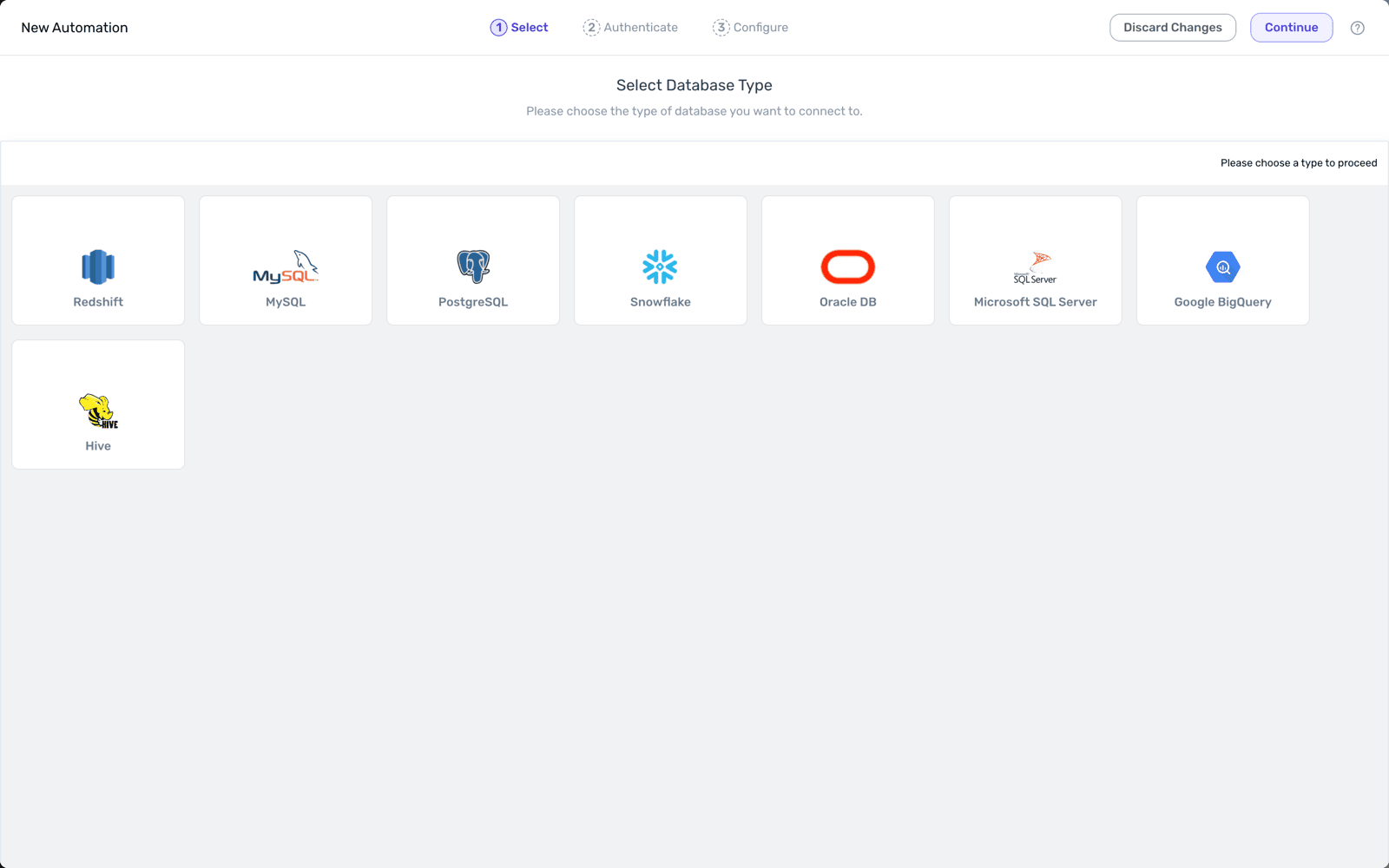
Select -- Pick your database type from the cards. You can't change the database type after you create the automation.
-
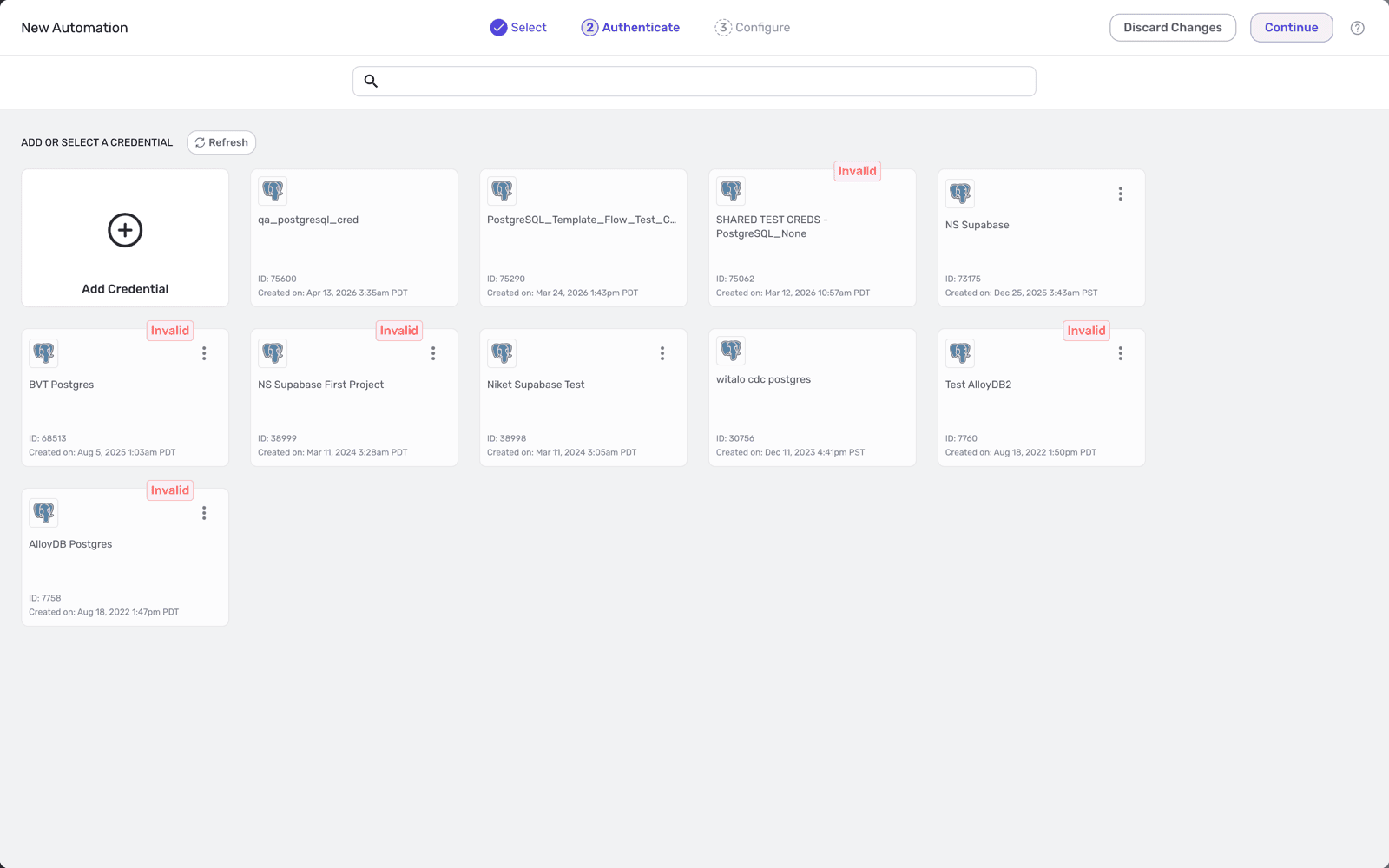
Authenticate -- Pick a credential for that database, or click Add Credential to create one. The list shows only credentials for the database type you picked, and marks any that no longer validate as Invalid. Click Continue.
-
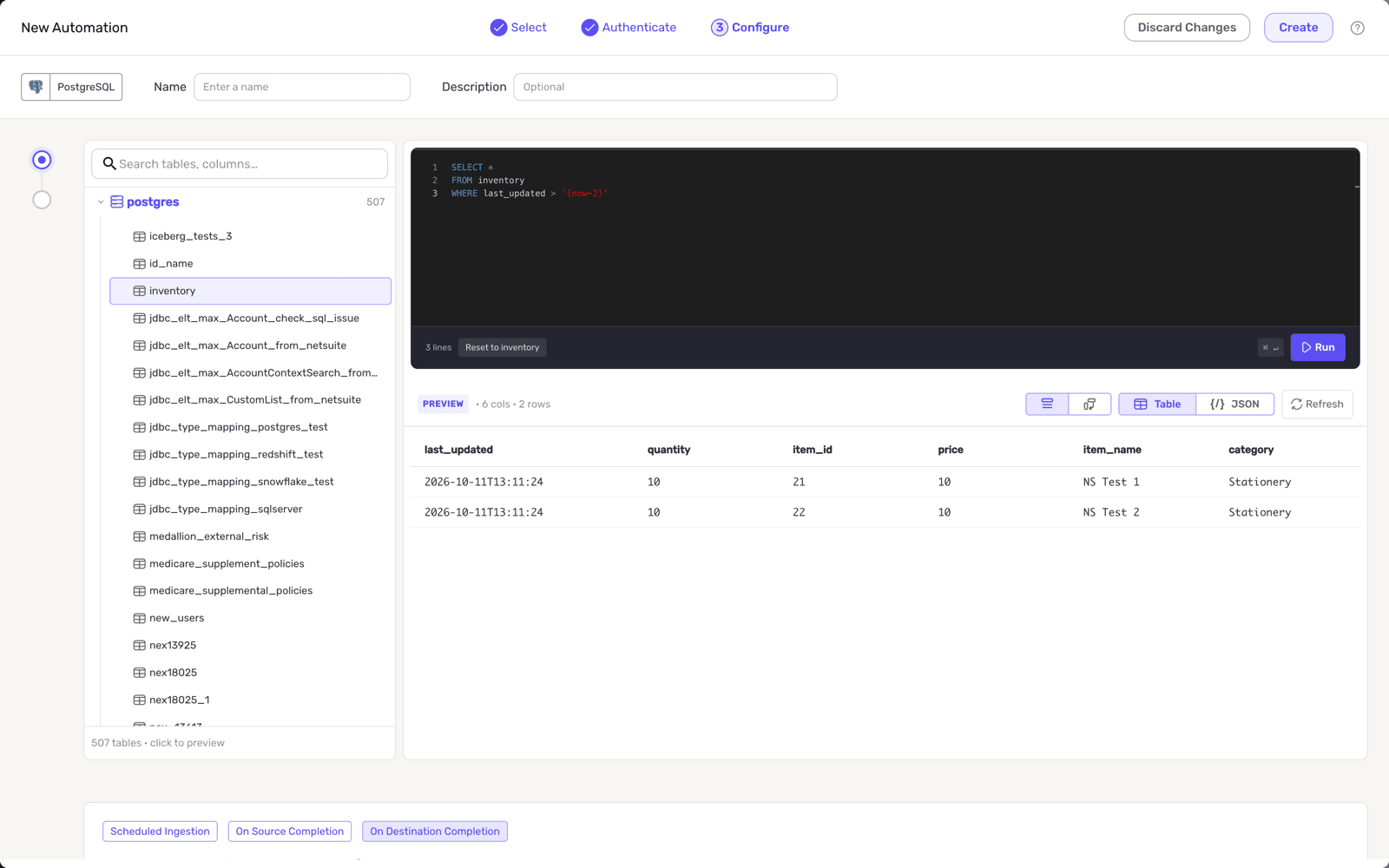
Configure -- Name the automation, then write your SQL.
- Browse the schema. The panel on the left lists the databases and tables the credential can see. Use the search box to find a table by name.
- Write the script. Clicking a table fills the editor with a
SELECTfor it, which you can replace with your own script. Statements run in order. You can use date macros such as{now-2}; Nexla replaces them with real values at run time. Click Reset to the table name to go back to the generatedSELECT. - Try a query. Click Run (or press ⌘↵) to run the query in the editor. The results appear below it, as a table or as JSON. Keep test queries small, for example by adding a
LIMIT.
-
Scroll to the schedule section at the bottom and choose when the automation runs:
Mode When it runs Scheduled Ingestion At a fixed frequency: once, hourly, daily, weekly or monthly, starting at the date, time and timezone you set. On Source Completion Each time the source you pick finishes a run. On Destination Completion Each time the destination you pick finishes writing. 

-
Click Create. The automation starts on its schedule and appears in the SQL Automations list.
Manage Automations
The SQL Automations page lists every automation you can access. Search by name, ID, tag or database type, filter by owner, and sort the list. Each row shows the automation's name, database type, ID, status and creation date.
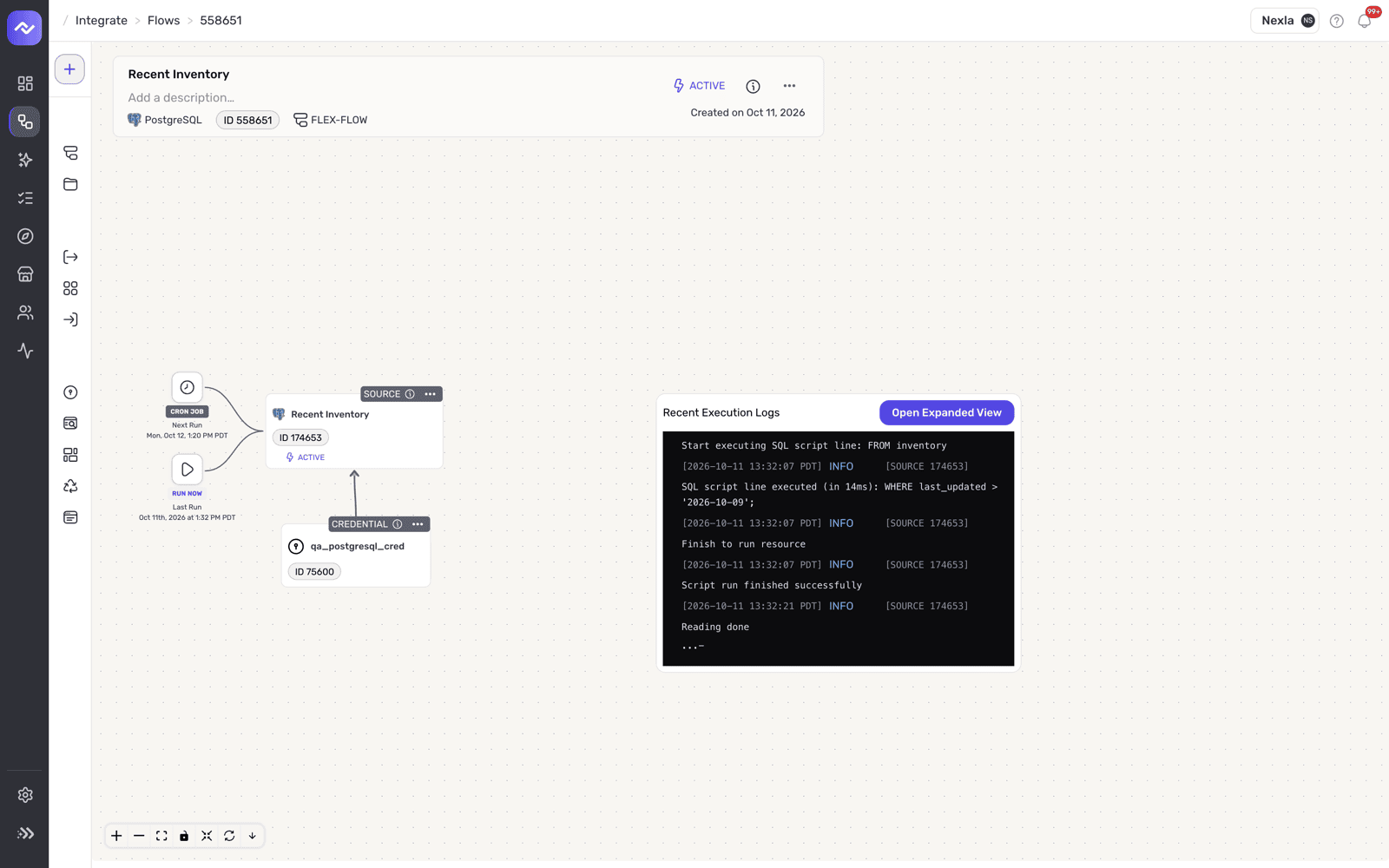
Click a row to expand it, or open it from Integrate to see it full screen. The flow view shows:
- Cron Job -- The next scheduled run.
- Run Now -- The last run.
- The automation -- Its name, ID, status and the database logo, connected to the credential it uses.
- Recent Execution Logs -- The latest log lines from the most recent run.
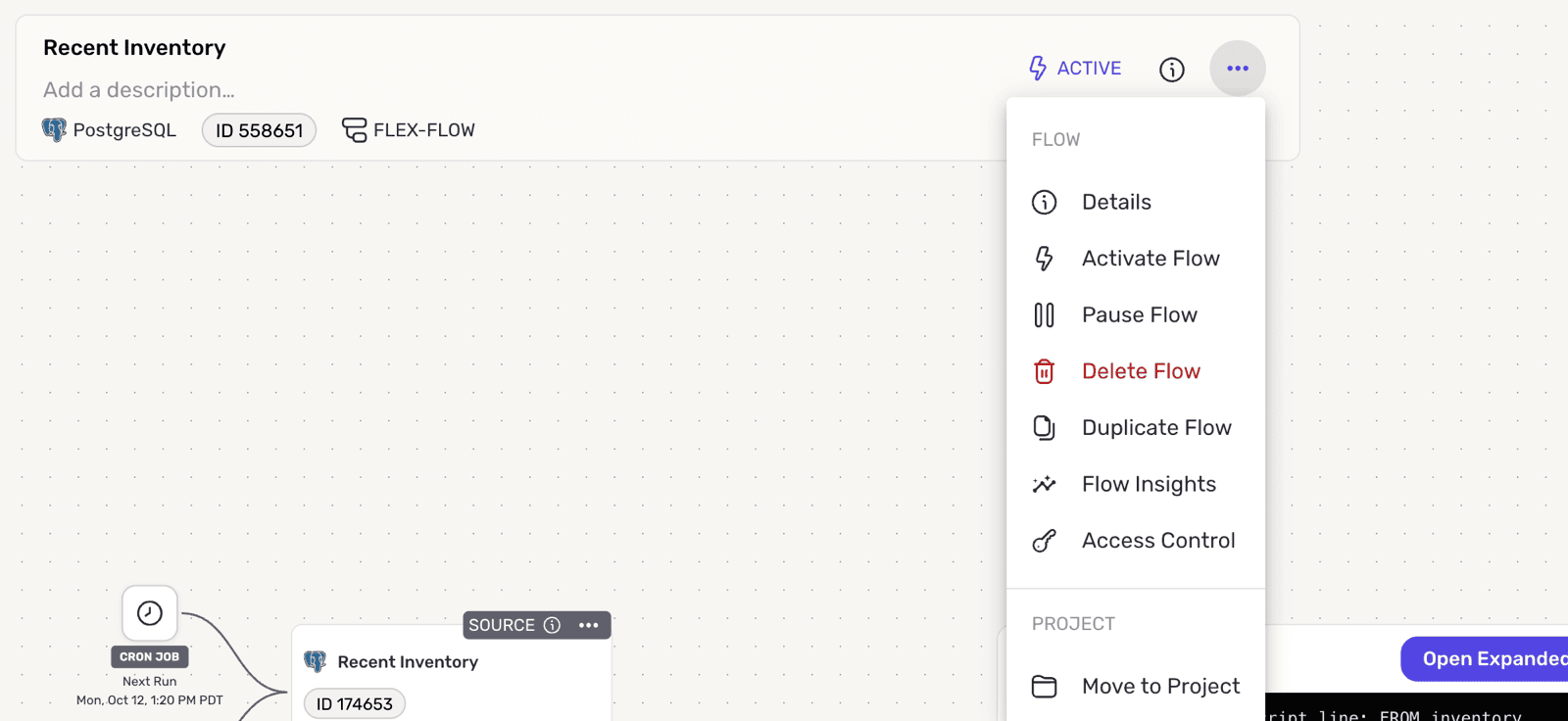
The ⋯ menu on the automation offers the standard flow actions: Details, Activate Flow, Pause Flow, Delete Flow, Duplicate Flow, Flow Insights, Access Control and Move to Project.
Edit an Automation
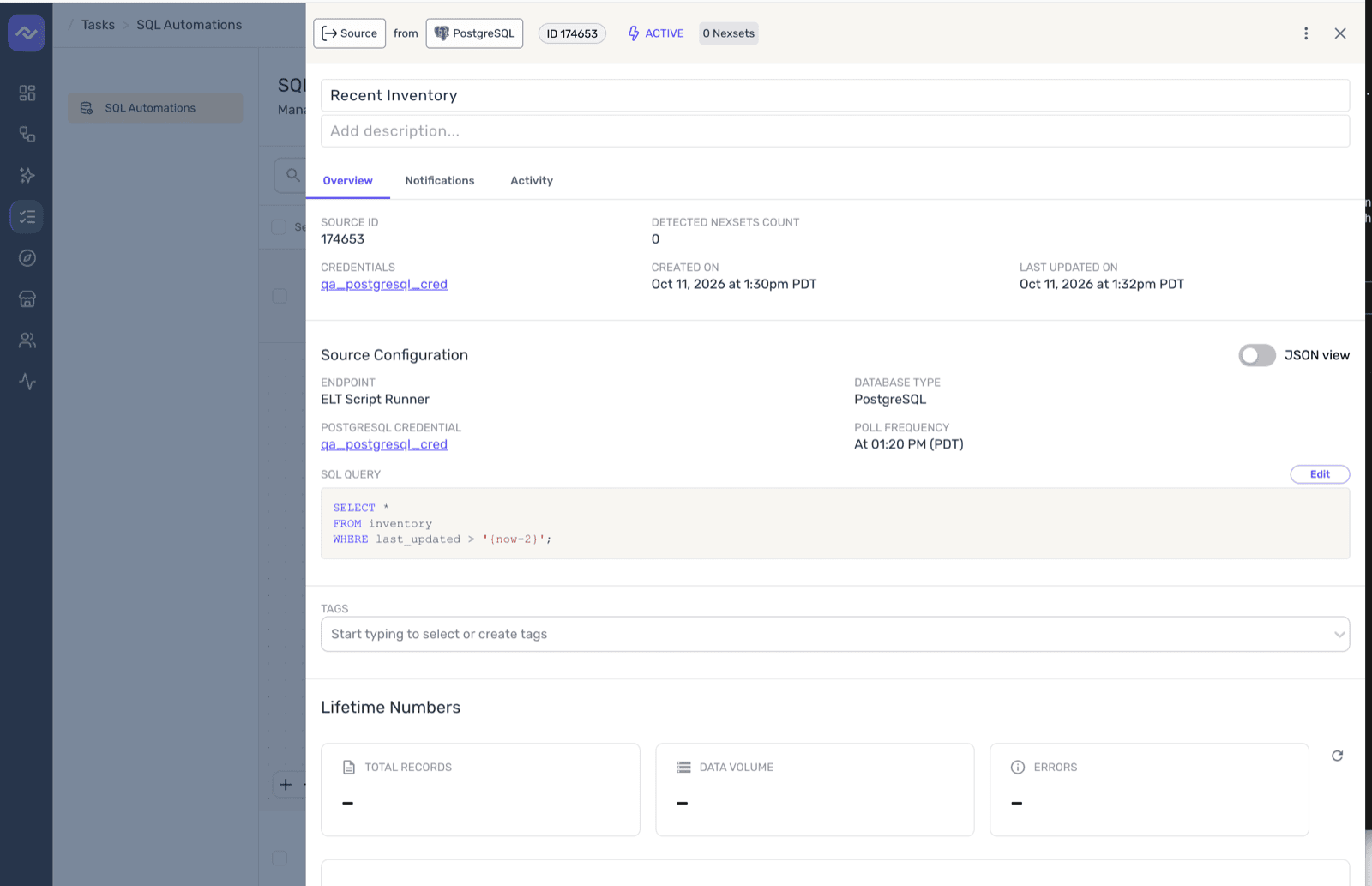
Click the automation's info icon to open its details. The Overview tab shows the database type, credential, schedule and SQL query. Click Edit to open the automation in the same three-step editor you used to create it. You can pick a different credential, change the script and change the schedule. The database type stays fixed.
Run an Automation on Demand
Open the ⋯ menu on the automation's source node and click Run Now. The run starts right away, and Last Run on the flow updates when it finishes. Use this after editing a script to confirm it works before the next scheduled run.
Check Runs and Find Issues
You can see what an automation did, and whether it succeeded, in three places:
- On the flow -- The Run Now node shows the last run time, and the Recent Execution Logs panel shows the latest log lines. Click Open Expanded View for the full log.
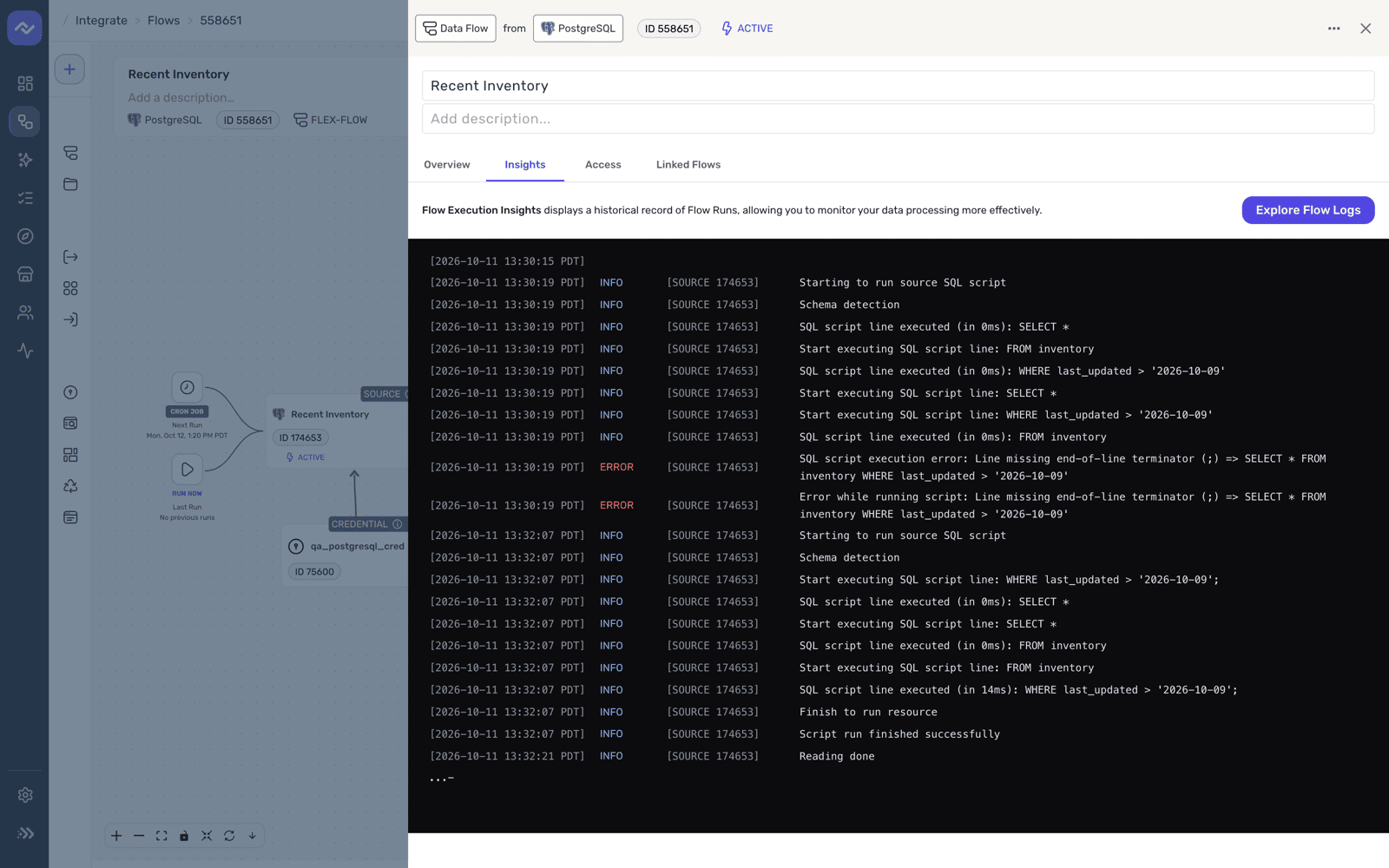
- In the Insights tab -- Open the automation's details and go to Insights. It shows the execution log for every run, oldest first. Click Explore Flow Logs to open the full log viewer.
- In the Activity tab -- See who created, edited, paused or activated the automation and when.
Read the Execution Log
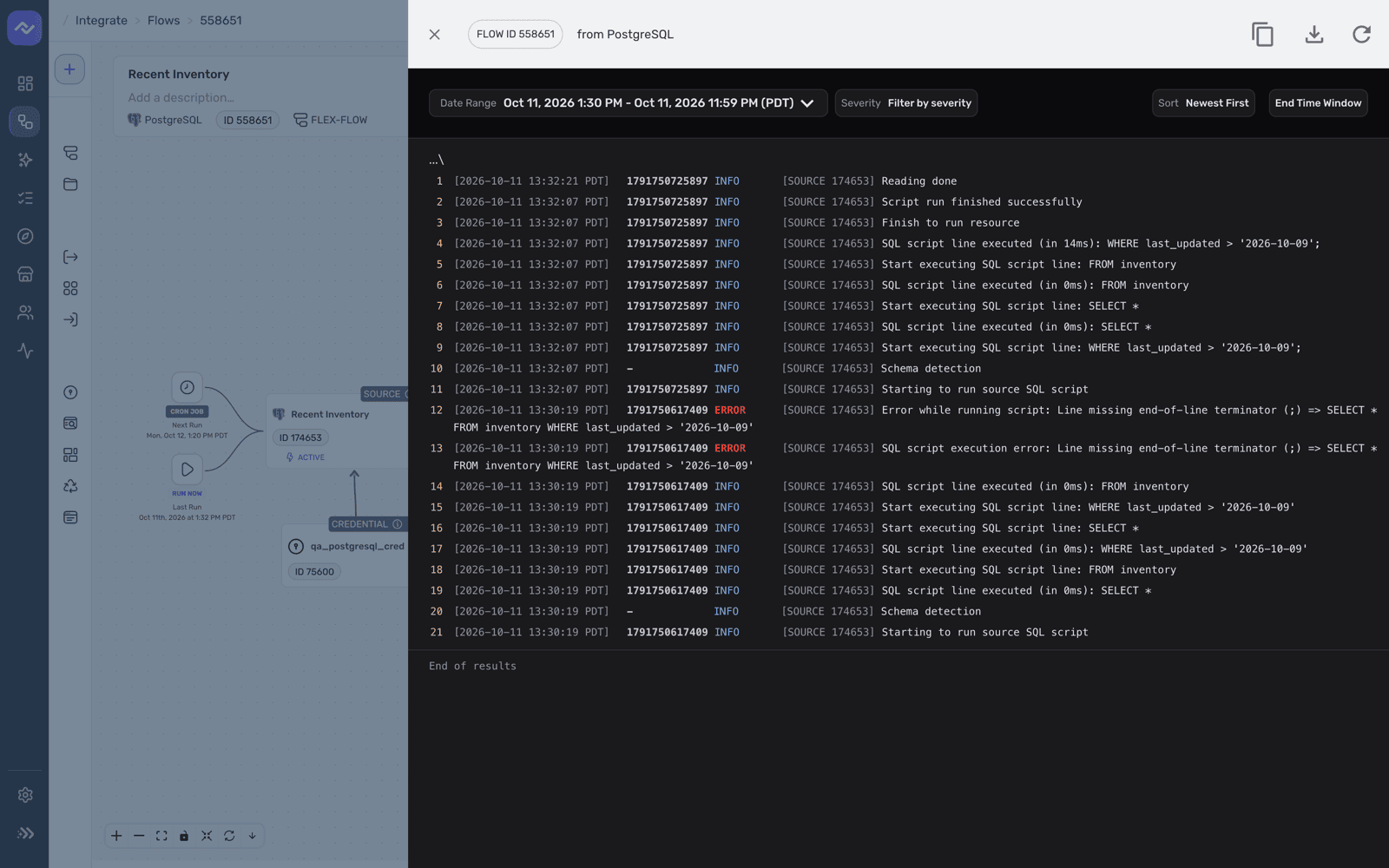
Each run writes one log entry when a statement starts and one when it finishes, with the time it took. A run ends with Script run finished successfully, or with an ERROR entry that includes the message from your database. Statements appear after macro substitution, so the log shows the exact SQL that ran.
The full log viewer adds a date range, a severity filter, newest-first or oldest-first sorting, and buttons to copy or download the log.
Get Notified When a Run Fails
Open the Notifications tab in the automation's details to choose which events send you a notification, such as a failed run. See Notification Settings.
SQL automations were previously created from the ELT Script Runner connector under New Data Flow. Automations you created that way are SQL automations: they appear under Tasks, open in the new editor, and keep running on their existing schedules. Create new ones from Tasks > SQL Automations.
Troubleshooting
A Statement Fails
The execution log names the statement that failed and includes the error from your database. Common causes are a missing privilege for the credential's user, an object the credential can't see, or a syntax difference between databases. Fix the script in the editor, then run the automation again.
Continue Isn't Enabled on the Authenticate Step
The selected credential is marked Invalid. Open the credential, test it, and fix the connection details, or pick another credential.
Next Steps
- Create a Credential -- Add a credential for your database or warehouse.
- Data Flow Information & Insights -- Read flow details and execution logs.
- Connect to a Database -- Set up a database as a source or destination for the flows your automations depend on.