
AWS Selling Partner API

AWS Selling Partner API provides programmatic access to Amazon's selling platform, enabling sellers to manage orders, inventory, reports, and marketplace data through comprehensive REST APIs for streamlined e-commerce operations.

AWS Selling Partner API icon

Power end-to-end data operations for your AWS Selling Partner API API with Nexla. Our bi-directional AWS Selling Partner API connector is purpose-built for AWS Selling Partner API, making it simple to ingest data, sync it across systems, and deliver it anywhere — all with no coding required. Nexla turns API-sourced data into ready-to-use, reusable data products and makes it easy to send data to AWS Selling Partner API or any other destination. With comprehensive monitoring, lineage tracking, and access controls, Nexla keeps your AWS Selling Partner API workflows fast, secure, and fully governed.

Features

Type: API

SourceDestination

  • Seamless API Integration: Connect to any endpoint as source or destination without coding, with automatic data product creation
  • Visual Composition & Chaining: Build complex integrations using visual templates, chain API calls, and compose workflows with data validation and filtering
  • API Proxy: Expose curated slices of your data securely with a secure and customizable API proxy that validates and transforms data on the fly
  • Request optimization with intelligent batching, retry, and caching to minimize API calls and costs

Prerequisites

Before creating an AWS Selling Partner API credential in Nexla, you need to have an active Amazon Seller Central account and understand which Seller Central region and SP-API endpoint you want to use. AWS Selling Partner API uses OAuth 2.0 authentication with AWS Signature Version 4 for secure access to your seller account data.

AWS Selling Partner API requires an active Amazon Seller Central account to access seller data, orders, inventory, and reports. The API provides programmatic access to your seller account information through secure OAuth 2.0 authentication.

  1. Access Amazon Seller Central: Sign in to your Amazon Seller Central account for the region where you want to access data.

  2. Verify Account Status: Ensure your Seller Central account is active and in good standing. The account must have appropriate permissions to access the SP-API endpoints you plan to use.

  3. Identify Seller Central URL: Determine which Seller Central URL corresponds to your account region. Different regions use different Seller Central URLs (e.g., https://sellercentral.amazon.com for US, https://sellercentral-europe.amazon.com for EU regions). For a complete list of Seller Central URLs, see the AWS SP-API Seller Central URLs documentation.

  4. Identify SP-API Endpoint: Determine which SP-API endpoint region you want to use. SP-API endpoints are associated with specific AWS regions: North America, EU, or Far East. Each region has both production and sandbox endpoints available. For detailed information about SP-API endpoints, see the AWS SP-API Endpoints documentation.

  5. Review API Access Requirements: Review the AWS SP-API documentation to understand which API endpoints and data you need access to. Different endpoints may require different permissions or account types.

Authenticate

Credentials required

FieldRequiredSecretDescription
Seller Central URLYesNoSelect the url for the Seller Central account you wish to connect to. These URLs can be found in https://developer-docs.amazon.com/sp-api/docs/seller-central-urls Allowed values: US: https://sellercentral.amazon.com; Canada: https://sellercentral.amazon.ca; Mexico: https://sellercentral.amazon.com.mx; Brazil: https://sellercentral.amazon.com.br; Spain: https://sellercentral-europe.amazon.com; UK: https://sellercentral-europe.amazon.com; France: https://sellercentral-europe.amazon.com; Netherlands: https://sellercentral.amazon.nl; Germany: https://sellercentral-europe.amazon.com; Italy: https://sellercentral-europe.amazon.com; Sweden: https://sellercentral.amazon.se; Poland: https://sellercentral.amazon.pl; Egypt: https://sellercentral.amazon.eg; Turkey: https://sellercentral.amazon.com.tr; Saudi Arabia: https://sellercentral.amazon.sa; U.A.E.: https://sellercentral.amazon.ae; India: https://sellercentral.amazon.in; Belgium: https://sellercentral.amazon.com.be; Singapore: https://sellercentral.amazon.sg; Australia: https://sellercentral.amazon.com.au; Japan: https://sellercentral.amazon.co.jp
SP-API EndpointYesNoSelling Partner API endpoints are associated with a particular AWS Region. Check https://developer-docs.amazon.com/sp-api/docs/sp-api-endpoints for details. Allowed values: North America (Production) https://sellingpartnerapi-na.amazon.com; North America (Sandbox) https://sandbox.sellingpartnerapi-na.amazon.com; EU (Production) https://sellingpartnerapi-eu.amazon.com; EU (Sandbox) https://sandbox.sellingpartnerapi-eu.amazon.com; Far East (Production) https://sellingpartnerapi-fe.amazon.com; Far East (Sandbox) https://sandbox.sellingpartnerapi-fe.amazon.com

Create a credential in Nexla

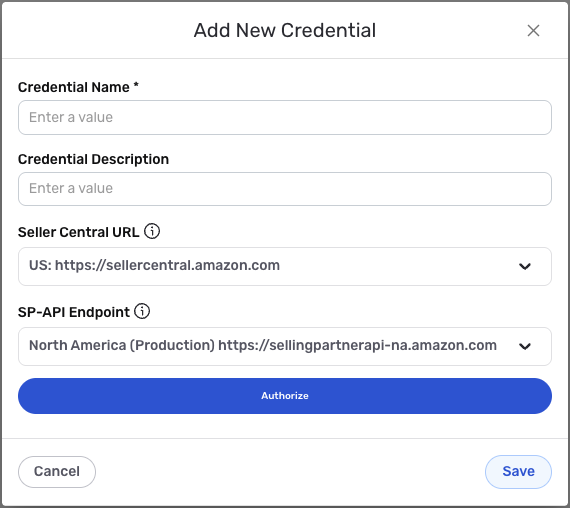
  1. After selecting the data source/destination type, click the Add Credential tile to open the Add New Credential overlay.

New Credential Overlay – AWS Selling Partner API
AWSSellingPartnerCred.png
  1. Enter a name for the credential in the Credential Name field and a short, meaningful description in the Credential Description field.

  2. Select the Seller Central URL that corresponds to your Amazon Seller Central account region from the Seller Central URL dropdown menu. This URL determines which Seller Central region your credential will connect to. Available options include:

    • US: https://sellercentral.amazon.com
    • Canada: https://sellercentral.amazon.ca
    • Mexico: https://sellercentral.amazon.com.mx
    • Brazil: https://sellercentral.amazon.com.br
    • EU regions (Spain, UK, France, Germany, Italy): https://sellercentral-europe.amazon.com
    • Netherlands: https://sellercentral.amazon.nl
    • And other regional Seller Central URLs

    The Seller Central URL must match the region where your Amazon Seller Central account is located. This URL is used during the OAuth authorization flow to redirect you to the correct Seller Central login page. For a complete list of Seller Central URLs by region, see the AWS SP-API Seller Central URLs documentation.

  3. Complete the OAuth authorization flow by following the prompts to authorize Nexla to access your Amazon Seller Central account. The OAuth flow will automatically handle token exchange and refresh. During the authorization process, you will be redirected to Amazon Seller Central to sign in and grant permissions to Nexla.

    The OAuth 2.0 flow provides secure, token-based access to the AWS Selling Partner API with automatic token refresh. The authorization process requires you to sign in to your Amazon Seller Central account and grant permissions to Nexla. The OAuth flow uses Nexla's public AWS SP-API application, which simplifies the setup process. For detailed information about AWS SP-API authentication, see the AWS SP-API documentation.

  4. Select the SP-API endpoint region from the SP-API Endpoint dropdown menu. This determines which AWS region's SP-API endpoint will be used for API calls. Available options include:

    • North America (Production): https://sellingpartnerapi-na.amazon.com
    • North America (Sandbox): https://sandbox.sellingpartnerapi-na.amazon.com
    • EU (Production): https://sellingpartnerapi-eu.amazon.com
    • EU (Sandbox): https://sandbox.sellingpartnerapi-eu.amazon.com
    • Far East (Production): https://sellingpartnerapi-fe.amazon.com
    • Far East (Sandbox): https://sandbox.sellingpartnerapi-fe.amazon.com

    The SP-API endpoint should match the region where your Seller Central account operates. Use sandbox endpoints for testing and development, and production endpoints for live data access. The endpoint region determines which AWS infrastructure handles your API requests. For detailed information about SP-API endpoints and regions, see the AWS SP-API Endpoints documentation.

  5. Click the Save button at the bottom of the overlay to save the configured credential. The newly added credential will now appear in a tile on the Authenticate screen during data source/destination creation and can be selected for use with a new data source or destination.

Use as a data source

To create a new data flow, navigate to the Integrate section, and click the New Data Flow button. Then, select the desired flow type from the list, and click the Create button. Select the AWS Selling Partner API connector tile from the list of available connectors, then select the credential that will be used to connect to the AWS Selling Partner API instance, and click Next; or, create a new AWS Selling Partner API credential for use in this flow.

Endpoint templates

Nexla provides pre-built templates that can be used to rapidly configure data sources to ingest data from common AWS Selling Partner API endpoints. Each template is designed specifically for the corresponding AWS Selling Partner API endpoint, making data source setup easy and efficient. Select the endpoint from which this source will fetch data from the Endpoint pulldown menu. Available endpoint templates are listed in the expandable boxes below. Click on an endpoint to see more information about it and how to configure your data source for this endpoint.

Get Orders Created in Time Range

This endpoint retrieves orders created during a specified time range from your Amazon Seller Central account. Use this endpoint when you need to access order data for analysis, fulfillment, or reporting purposes.

  • Enter the start date and time for the order retrieval in the Created After field. This should be an ISO 8601 formatted date (e.g., 2024-01-01T00:00:00Z) indicating the earliest order creation time to include. You can use Nexla macros like {now} for the current time or {now-1} for one time unit before the current time.
  • Enter the marketplace IDs for the marketplaces from which you want to retrieve orders in the Marketplace IDs field. Marketplace IDs are comma-separated values (e.g., ATVPDKIKX0DER for US marketplace). You can find marketplace IDs in the AWS SP-API documentation for your region.
  • The endpoint uses GET requests to the SP-API Orders endpoint ({sp_api_url}/orders/v0/orders) with query parameters for CreatedAfter and MarketplaceIds. The endpoint URL is automatically constructed based on your credential's SP-API endpoint configuration.
  • The endpoint uses token-based pagination when applicable, automatically fetching additional pages as needed using the NextToken mechanism. When a response includes a NextToken field in the payload object, Nexla automatically includes it in the subsequent request to fetch the next page of results.
  • The endpoint will return all orders created after the specified time within the selected marketplaces. The response data is extracted from the payload.Orders array in the API response ($.payload.Orders[*]), with each order record processed individually.

This endpoint requires properly formatted ISO 8601 dates for the Created After parameter. The endpoint uses token-based pagination (iteration.type: paging.next.token) through the NextToken mechanism, where the token is located at $.payload.NextToken in the response. The endpoint requires OAuth 2.0 authentication with AWS Signature Version 4, which is handled automatically by your credential configuration. The x-amz-access-token header is automatically included in requests using the OAuth access token from your credential. For detailed information about the Orders API, including available query parameters, response formats, and marketplace IDs, see the AWS SP-API Orders API documentation.

Get Inventory Summaries

This endpoint retrieves a list of inventory summaries that have had changes after a specified date and time from your Amazon FBA (Fulfillment by Amazon) inventory. Use this endpoint when you need to access inventory data for stock management, reporting, or synchronization purposes.

  • Enter the start date and time for the inventory retrieval in the Start Time field. This should be an ISO 8601 formatted date (e.g., 2024-01-01T00:00:00Z) indicating the earliest inventory change time to include. You can use Nexla macros like {now} for the current time or {now-1} for one time unit before the current time.
  • Select the granularity type for the inventory summaries from the Granularity Type dropdown menu. Available options include Marketplace for marketplace-level summaries or Warehouse for warehouse-level summaries.
  • Enter the granularity ID in the Granularity ID field. This should match the granularity type selected (e.g., a marketplace ID for marketplace granularity or a warehouse ID for warehouse granularity).
  • Enter the marketplace IDs for the marketplaces from which you want to retrieve inventory in the Marketplace IDs field. Marketplace IDs are comma-separated values (e.g., ATVPDKIKX0DER for US marketplace).
  • The endpoint uses GET requests to the SP-API FBA Inventory endpoint ({sp_api_url}/fba/inventory/v1/summaries) with query parameters for startDateTime, granularityType, granularityId, and marketplaceIds. The endpoint URL is automatically constructed based on your credential's SP-API endpoint configuration.
  • The endpoint uses token-based pagination when applicable, automatically fetching additional pages as needed using the nextToken mechanism. When a response includes a nextToken field in the pagination object, Nexla automatically includes it in the subsequent request to fetch the next page of results.
  • The endpoint will return all inventory summaries that have changed after the specified time within the selected marketplaces. The response data is extracted from the payload.inventorySummaries array in the API response ($.payload.inventorySummaries[*]), with each inventory summary processed individually.

This endpoint requires properly formatted ISO 8601 dates for the Start Time parameter. The endpoint uses token-based pagination (iteration.type: paging.next.token) through the nextToken mechanism, where the token is located at $.pagination.nextToken in the response. The endpoint requires OAuth 2.0 authentication with AWS Signature Version 4, which is handled automatically by your credential configuration. The x-amz-access-token header is automatically included in requests using the OAuth access token from your credential. For detailed information about the FBA Inventory API, including available query parameters, response formats, and granularity options, see the AWS SP-API FBA Inventory API documentation.

Request and Retrieve a Report

This endpoint requests a report from Amazon Seller Central and retrieves the report data once it's ready. Use this endpoint when you need to access Amazon reports for analytics, business intelligence, or data synchronization purposes.

  • Select the report type you want to request from the Report Type dropdown menu. Available report types include various order, inventory, settlement, and performance reports. The report type determines what data will be included in the report.
  • Enter the start date and time for the report data in the Created After field. This should be an ISO 8601 formatted date (e.g., 2024-01-01T00:00:00Z) indicating the earliest data to include in the report. You can use Nexla macros like {now} for the current time or {now-1} for one time unit before the current time.
  • Enter the marketplace IDs for the marketplaces from which you want to retrieve report data in the Marketplace IDs field. Marketplace IDs are comma-separated values (e.g., ATVPDKIKX0DER for US marketplace).
  • Select the file format for the report from the File Format dropdown menu. Available formats include JSON, CSV, TAB, and XLSX, depending on the report type.
  • The endpoint uses a multi-step process to request and retrieve reports: First, it sends a POST request to create a report request ({sp_api_url}/reports/2021-06-30/reports). Then, it polls the report status using GET requests until the report is ready. Once ready, it retrieves the report document URL and downloads the report file.
  • The endpoint automatically handles the asynchronous report generation process, polling the report status until it's complete (status: DONE). The polling interval and timeout are configured automatically by Nexla.
  • The endpoint will return the report data in the selected format. The response data path depends on the file format: JSON reports are parsed and extracted, while CSV, TAB, and XLSX reports are processed as structured data.

This endpoint uses a multi-step asynchronous process to request and retrieve reports. The endpoint first creates a report request, then polls for completion, retrieves the document URL, and finally downloads the report file. The endpoint requires properly formatted ISO 8601 dates for the Created After parameter. The endpoint requires OAuth 2.0 authentication with AWS Signature Version 4, which is handled automatically by your credential configuration. The x-amz-access-token header is automatically included in requests using the OAuth access token from your credential. Report generation can take time depending on the report type and data volume. For detailed information about the Reports API, including available report types, request parameters, response formats, and file formats, see the AWS SP-API Reports API documentation.

Once the selected endpoint template has been configured, click the Test button to the right of the endpoint selection menu to retrieve a sample of the data that will be fetched. Sample data will be displayed in the Endpoint Test Result panel on the right, allowing you to verify that the source is configured correctly before saving.

Manual configuration

AWS Selling Partner API data sources can also be manually configured to ingest data from any valid AWS Selling Partner API endpoint, including endpoints not covered by the pre-built templates, chained API calls, or custom request parameters. Select the Advanced tab at the top of the configuration screen, and follow the instructions in Connect to Any API to configure the API method, endpoint URL, date/time and lookup macros, path to data, metadata, and request headers.

AWS Selling Partner API endpoints follow the pattern {sp_api_url}/{api_path}, where {sp_api_url} is your SP-API endpoint (e.g., https://sellingpartnerapi-na.amazon.com) and {api_path} is the specific API path (e.g., /orders/v0/orders). Datetime values use ISO 8601 format (yyyy-MM-dd'T'HH:mm:ss'Z'), and JSON data paths use dot notation (e.g., $.payload.Orders[*]). AWS Selling Partner API requests require OAuth 2.0 authentication with AWS Signature Version 4, and the x-amz-access-token header is automatically included in requests using the OAuth access token from your credential—you do not need to add it manually.

Once all of the relevant settings have been configured, click the Create button in the upper right corner of the screen to save and create the new AWS Selling Partner API data source. Nexla will now begin ingesting data from the configured endpoint and will organize any data that it finds into one or more Nexsets.