Magento API
Magento GraphQL API provides comprehensive e-commerce data access capabilities, enabling businesses to retrieve product catalogs, customer information, order data, and inventory details through flexible GraphQL queries for seamless integration with modern e-commerce workflows.

Power end-to-end data operations for your Magento API API with Nexla. Our bi-directional Magento API connector is purpose-built for Magento API, making it simple to ingest data, sync it across systems, and deliver it anywhere — all with no coding required. Nexla turns API-sourced data into ready-to-use, reusable data products and makes it easy to send data to Magento API or any other destination. With comprehensive monitoring, lineage tracking, and access controls, Nexla keeps your Magento API workflows fast, secure, and fully governed.
Features
Type: API
- Seamless API Integration: Connect to any endpoint as source or destination without coding, with automatic data product creation
- Visual Composition & Chaining: Build complex integrations using visual templates, chain API calls, and compose workflows with data validation and filtering
- API Proxy: Expose curated slices of your data securely with a secure and customizable API proxy that validates and transforms data on the fly
- Request optimization with intelligent batching, retry, and caching to minimize API calls and costs
Prerequisites
Before creating a Magento API credential, you need to identify your Magento server URL and optionally obtain an authorization token if you need to access protected data. The authorization token is optional for accessing public data, but required for accessing protected resources like customer data, orders, and inventory information.
To obtain your authorization token (if needed for protected data), follow these steps:
-
Sign in to your Magento admin panel using your administrator credentials.
-
Navigate to System > Integrations in the Magento admin menu.
-
Click Add New Integration to create a new integration.
-
Enter a name for the integration (e.g., "Nexla Integration") in the Name field.
-
Enter your email address in the Your Email field.
-
Enter a password in the Your Password field to secure the integration.
-
In the API tab, select the resource access permissions you need for your integration. You can choose specific resources or select All for full access.
-
Click Save to create the integration.
-
Click Activate to activate the integration and generate the access token.
-
After activation, the Access Token will be displayed. Copy this token immediately, as it may not be accessible again after you navigate away from the page.
-
Store the authorization token securely, as you will need it to configure your Nexla credential. The authorization token provides access to your Magento data based on the permissions you configured, so treat it as sensitive information.
The authorization token is sent in the Authorization header with the Bearer prefix (e.g., Authorization: Bearer {token}) for all API requests to the Magento GraphQL API. The token authenticates your integration and grants access to Magento resources based on the permissions configured for the integration. If you only need to access public data (such as public product catalogs), you can leave the authorization token blank. For detailed information about authorization tokens, API authentication, and available GraphQL queries, refer to the Magento GraphQL API documentation and Magento authorization tokens documentation.
Authenticate
Credentials required
| Field | Required | Secret | Description |
|---|---|---|---|
| Magento Server | Yes | No | Your magento host url. Ex: http://<magento2-server> |
| Authorization Token | No | Yes | Admin authorization token for accessing protected data. Leave blank if you only want to access public data. |
Create a credential in Nexla
- After selecting the data source/destination type, click the Add Credential tile to open the Add New Credential overlay.
New Credential Overlay – Magento API
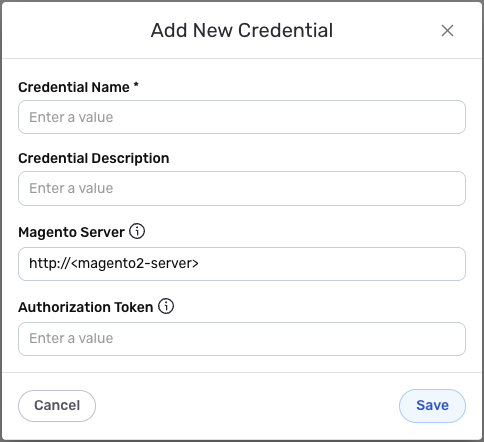
- Enter a name for the credential in the Credential Name field and a short, meaningful description in the Credential Description field.
Magento uses token-based authentication for accessing protected data through the GraphQL API. The authorization token is sent in the Authorization header with the Bearer prefix to authenticate API requests to the Magento GraphQL API.
-
Enter your Magento server URL in the Magento Server field. This should be the base URL of your Magento instance (e.g.,
https://yourstore.comorhttp://localhost/magento2). The server URL is used to construct GraphQL API endpoint URLs. Ensure the URL includes the protocol (http://orhttps://) and does not include a trailing slash. -
Enter your Magento authorization token in the Authorization Token field (optional). This is the access token you obtained from your Magento admin panel (System > Integrations). The authorization token is sent in the
Authorizationheader with theBearerprefix for all API requests to the Magento GraphQL API. Leave this field blank if you only need to access public data that doesn't require authentication. The authorization token is sensitive information and must be kept confidential if provided.The authorization token is optional and only required if you need to access protected data such as customer information, orders, or inventory details. If you only need to access public product catalogs or other public data, you can leave the authorization token field blank. If your authorization token is compromised, you should immediately revoke it in your Magento admin panel (System > Integrations) and create a new integration. Your Magento authorization token can be found in your Magento admin panel (System > Integrations) after creating and activating an integration. The authorization token is sent in the
Authorization: Bearer {token}header for all API requests to the Magento GraphQL API. The token provides access to Magento resources based on the permissions configured for the integration. For detailed information about obtaining and managing authorization tokens, API authentication, and available GraphQL queries, see the Magento GraphQL API documentation and Magento authorization tokens documentation. -
Click the Save button at the bottom of the overlay. The newly added credential will now appear in a tile on the Authenticate screen during data source/destination creation.
Use as a data source
To create a new data flow, navigate to the Integrate section, and click the New Data Flow button. Select the Magento API connector tile, then select the credential that will be used to connect to the Magento instance, and click Next; or, create a new Magento API credential for use in this flow.
In Nexla, Magento API data sources can be created using pre-built endpoint templates, which expedite source setup for common Magento GraphQL queries. Each template is designed specifically for the corresponding Magento GraphQL query type, making source configuration easy and efficient.
• To configure this source using a template, follow the instructions in Configure Using a Template.
Magento API sources can also be configured manually, allowing you to execute custom GraphQL queries not included in the pre-built templates or apply further customizations to exactly suit your needs.
• To configure this source manually, follow the instructions in Configure Manually.
Configure Using a Template
Nexla provides pre-built templates that can be used to rapidly configure data sources to execute common Magento GraphQL queries. Each template is designed specifically for the corresponding Magento GraphQL query type, making data source setup easy and efficient.
Select the endpoint from which this source will fetch data from the Endpoint pulldown menu. Available endpoint templates are listed in the expandable boxes below. Click on an endpoint to see more information about it and how to configure your data source for this endpoint.
Once the selected endpoint template has been configured, click the Test button to the right of the endpoint selection menu to retrieve a sample of the data that will be fetched. Sample data will be displayed in the Endpoint Test Result panel on the right, allowing you to verify that the source is configured correctly before saving.
Configure Manually
Magento API data sources can be manually configured to execute custom GraphQL queries not covered by pre-built templates. Manual configuration provides maximum flexibility for accessing custom queries or when you need advanced GraphQL query configurations.
With manual configuration, you can also create more complex Magento API sources, such as sources that use multiple GraphQL queries or sources that require custom variables or fragments.
API Method
-
To manually configure this source, select the Advanced tab at the top of the configuration screen.
-
Select the API method that will be used for calls to the Magento GraphQL API from the Method pulldown menu. Magento GraphQL API uses POST method for all queries, as GraphQL queries are sent in the request body.
API Endpoint URL
- Enter the URL of the Magento GraphQL API endpoint in the Set API URL field. This should be the complete URL to your Magento GraphQL endpoint, typically
{magento_server_url}/graphqlwhere{magento_server_url}is your Magento server URL configured in the credential (e.g.,https://yourstore.com/graphql).
Ensure the API endpoint URL is correct and accessible with your current credentials. The Magento GraphQL endpoint is typically located at /graphql relative to your Magento server URL. You can test the endpoint using the Test button after configuring the URL.
Request Body
- Configure the request body that will be sent to the Magento GraphQL API. The request body should contain your GraphQL query in JSON format. The request body format is:
{"query": "{ your_graphql_query }"}for simple queries, or{"query": "{ your_graphql_query }", "variables": { "variable_name": "variable_value" }}for queries with variables.
The request body must be valid JSON and must include a query property containing your GraphQL query. If your query uses variables, include a variables property with the variable values. The GraphQL query must be valid according to the Magento GraphQL schema. You can reference the Magento GraphQL queries documentation for available queries and schema information.
Response Data Path
- Enter the JSONPath expression in the Response Data Path field to specify which part of the API response should be treated as the relevant data by Nexla. This JSONPath expression should point to the array of items in the GraphQL response. For example, if your query returns products, use
$.data.products.items[*]to extract all product items from the response.
The JSONPath expression must correctly reference the structure of your GraphQL response. GraphQL responses typically have a data property containing the query results. Ensure your JSONPath expression matches the structure returned by your specific query. The JSONPath expression determines which data will be extracted and processed by Nexla.
Pagination (if applicable)
-
If your GraphQL query supports pagination, configure the pagination settings in the Pagination section. Select the pagination type that matches your Magento GraphQL query's pagination mechanism. Magento GraphQL typically uses page-based pagination with variables for
currentPageandpageSize. -
Configure the pagination parameters based on your selected pagination type. For page-based pagination, specify the page number parameter name, starting page number, page size parameter name, and page size value.
Save the Data Source
- Once all of the relevant steps in the above sections have been completed, click the Next button to proceed with the rest of the data flow configuration, or click Save to save the data source configuration for later use.