SQL Server CDC Setup Guide
This guide walks you through configuring SQL Server Change Data Capture (CDC) for use with Nexla. It covers:
- Enabling CDC at the database and table level
- Creating a dedicated CDC database user
- Granting the correct permissions at both server and database scope
CDC requires SQL Server Agent to be running. On Amazon RDS for SQL Server, use the msdb.dbo.rds_cdc_enable_db stored procedure instead of the standard sys.sp_cdc_enable_db.
Configure the Source in Nexla
Once the database side has been prepared with the steps below, return to Nexla and create a CDC data source pointing at your SQL Server instance.
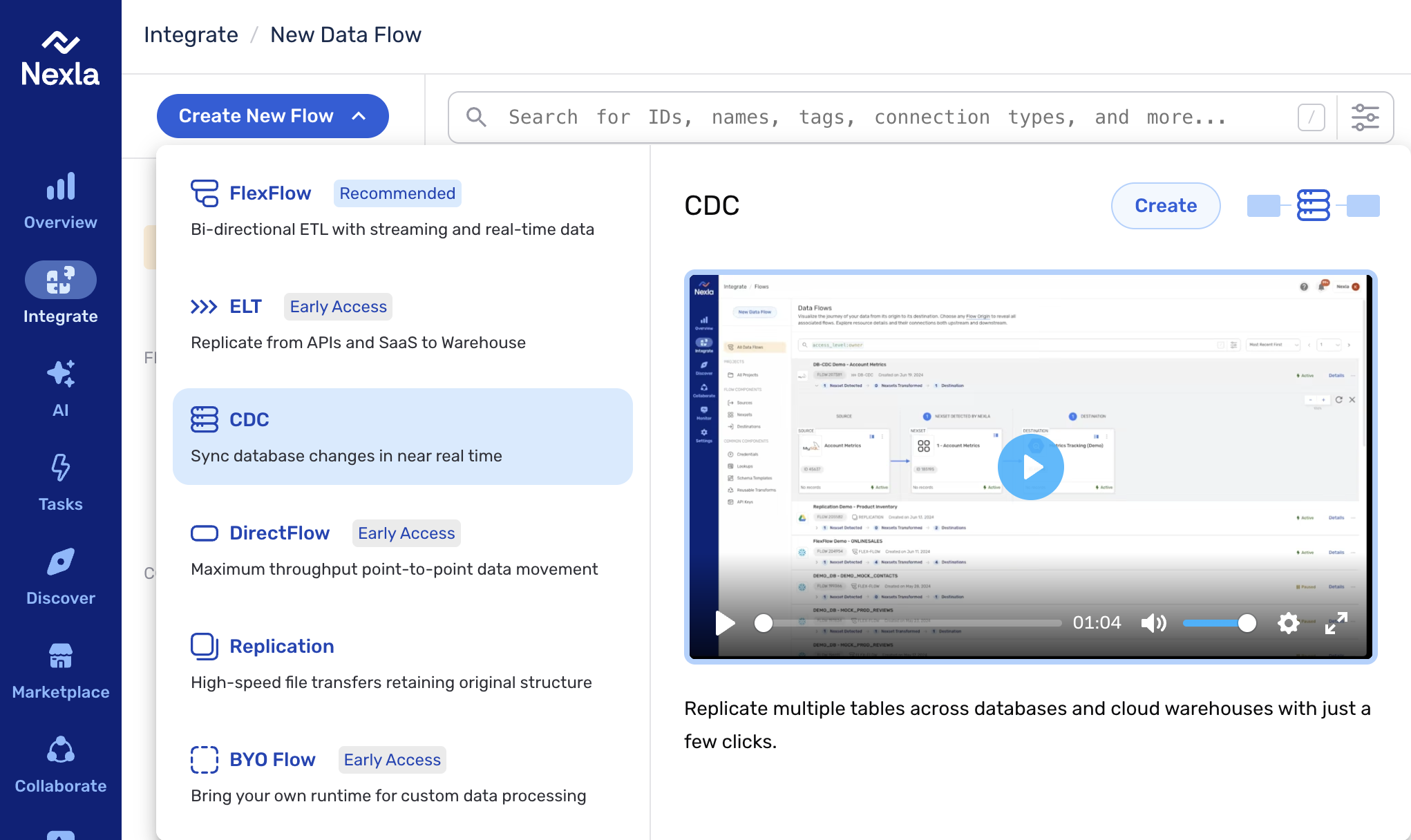
1. Start a CDC flow. From the Integrate section, click Create New Flow and select CDC from the list of flow types.
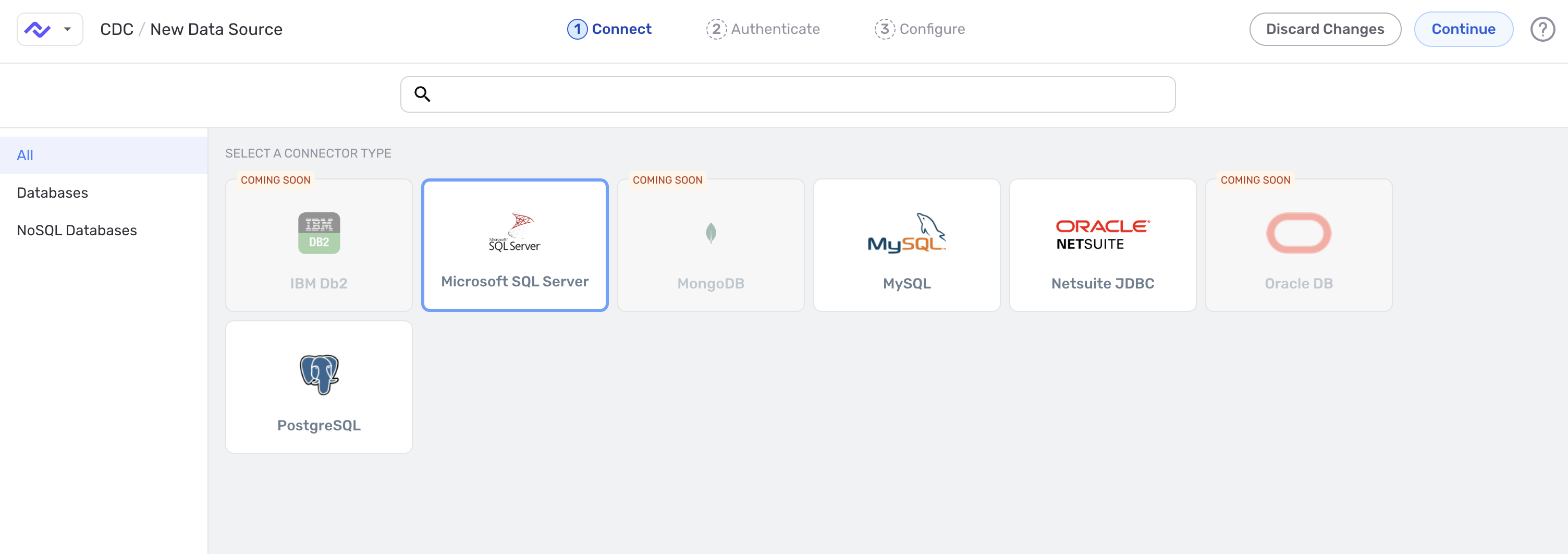
2. Select the connector type. On the Connect step, choose Microsoft SQL Server from the connector tiles.
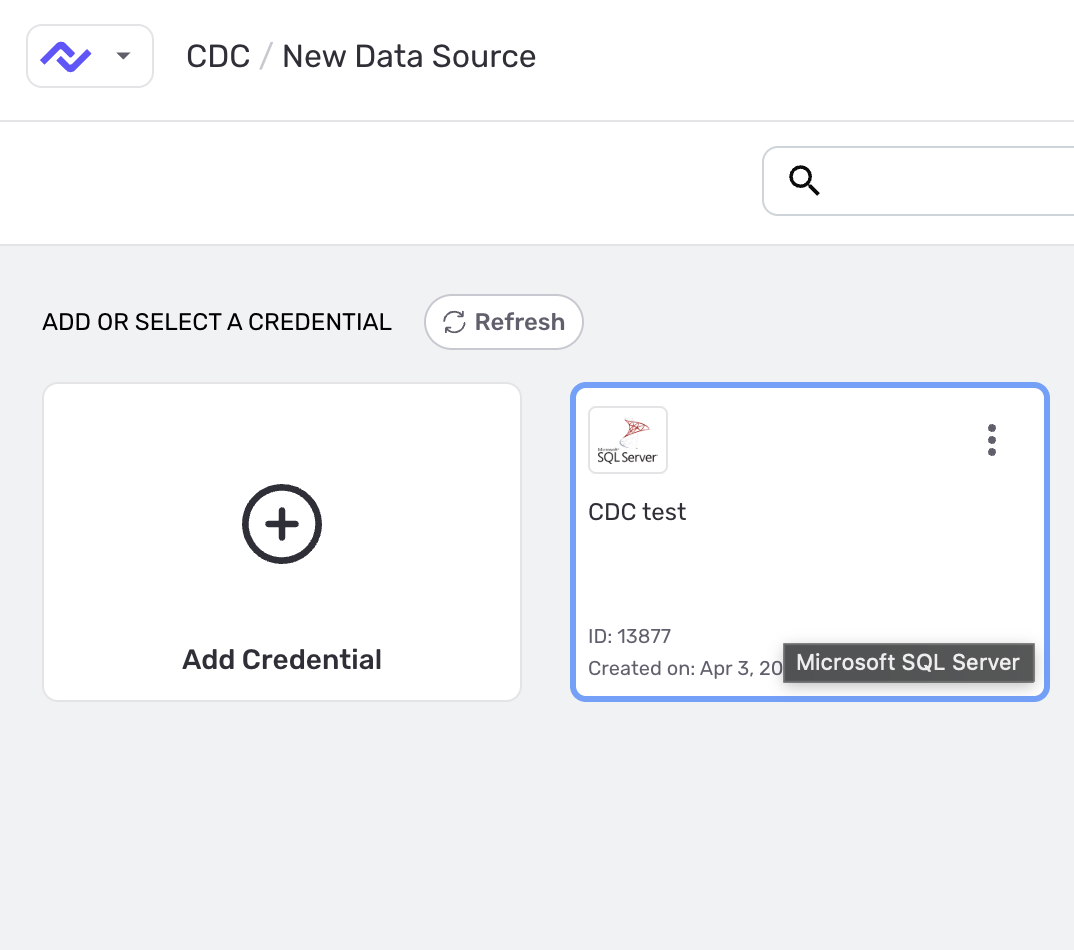
3. Authenticate with the CDC login. On the Authenticate step, select an existing Microsoft SQL Server credential or click Add Credential to create one using the cdc_user login created in Section 2.1 below.
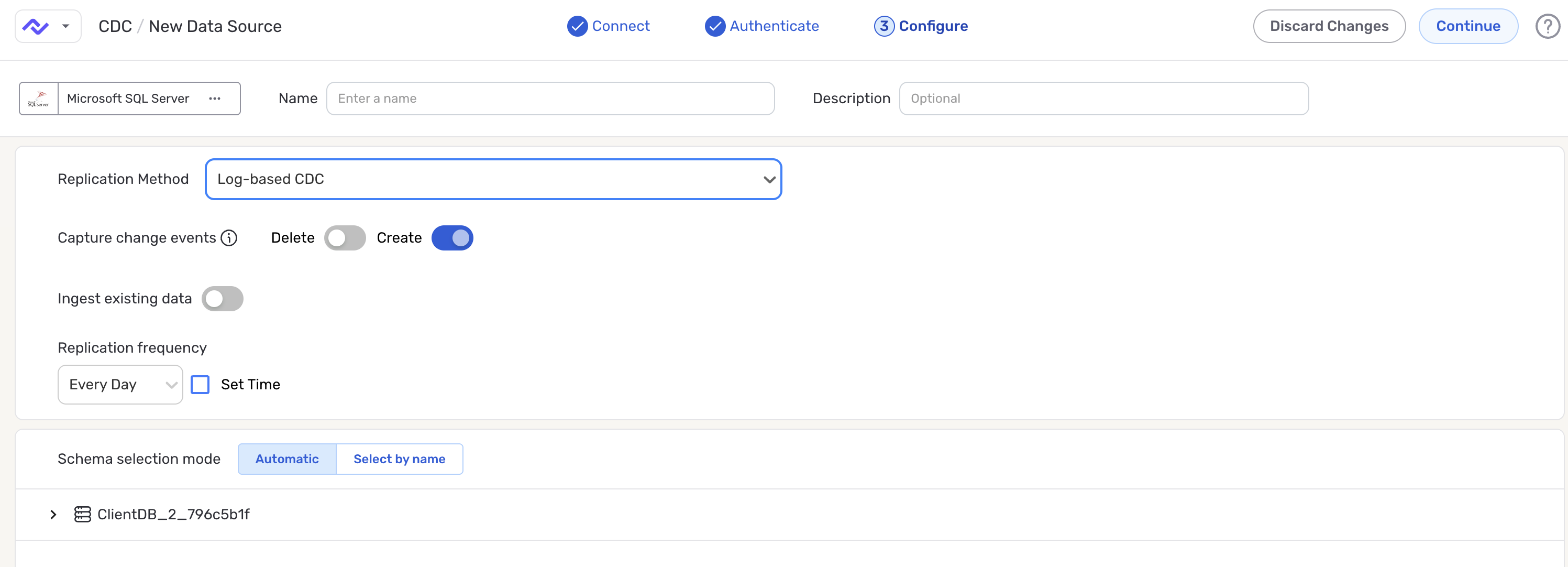
4. Configure the source. On the Configure step (the last step before the source is created), give the source a name and set:
- Replication Method — choose Log-based CDC to capture changes from SQL Server's CDC tables.
- Capture change events — toggle Create on; toggle Delete on if you also want deletions reflected in the destination.
- Ingest existing data — on if pre-existing rows should be replicated; off to capture only new changes from this point forward.
- Replication frequency — how often Nexla scans the source for changes. Optionally check Set Time to pin a specific time.
- Schema selection mode — Automatic to include every CDC-enabled table, or Select by name to include/exclude specific tables.
After saving the source, follow the destination setup steps on the DB-CDC Data Flows page.
1. Enable CDC
CDC must be enabled at both the database level and the table level.
1.1 Enable CDC for the Database
Run this command from your terminal (outside the SQL shell):
sqlcmd -S <your-server-host>,1433 \
    -U <admin-user> \
    -d <YourDatabase> \
    -N -C \
    -Q "EXEC msdb.dbo.rds_cdc_enable_db '<YourDatabase>';"
On Amazon RDS use msdb.dbo.rds_cdc_enable_db. On self-managed SQL Server use EXEC sys.sp_cdc_enable_db instead. The -N flag enables encryption and -C trusts the server certificate — adjust these for your security policy.
1.2 Enable CDC for the Table
Inside your SQL shell, run the following stored procedure for each table you want to capture:
EXEC sys.sp_cdc_enable_table
    @source_schema        = N'dbo',
    @source_name          = N'<YourTableName>',
    @role_name            = NULL,
    @supports_net_changes = 1;
GO
Run sp_cdc_enable_table once for every table you wish to track. Replace dbo and <YourTableName> with the correct schema and table name for each target.
1.3 Verify CDC is Active
Run these queries to confirm CDC is enabled at both levels:
-- Check Database CDC Status (should return 1)
SELECT name, is_cdc_enabled
FROM   sys.databases
WHERE  name = '<YourDatabase>';

-- Check Table CDC Status (should return 1)
SELECT name, is_tracked_by_cdc
FROM   sys.tables
WHERE  name = '<YourTableName>';
GO
| Column | Expected Value | Description |
|---|---|---|
is_cdc_enabled | 1 | CDC is enabled at the database level. |
is_tracked_by_cdc | 1 | This table is actively tracked by CDC. |
2. User Creation & Permissions
The Nexla CDC connector requires a dedicated SQL Server login with specific permissions at both the server level and the database level. Follow the steps below to create the user and apply all required grants.
2.1 Create the SQL Server Login
-- Run in master or as a sysadmin
CREATE LOGIN cdc_user
    WITH PASSWORD = '<StrongPassword>';
GO
Use a strong, unique password and store it securely (for example, in your secrets manager). Avoid reusing application credentials.
2.2 Create the Database User
Map the login to a user inside your target database:
USE <YourDatabase>;
GO

CREATE USER cdc_user FOR LOGIN cdc_user;
GO
2.3 Grant Server-Level Permission
This is the most commonly missed step. The VIEW SERVER STATE permission must be granted at the server scope, before switching into a database context.
-- Run OUTSIDE any USE <db> context (e.g. in master)
GRANT VIEW SERVER STATE TO cdc_user;
GO
VIEW SERVER STATE must be applied before switching into a database context. Granting it inside a USE <YourDatabase> block will fail silently. Run this command from master or at the server scope.
2.4 Grant Database-Level Permissions
Switch into your target database and apply the remaining grants:
USE <YourDatabase>;
GO

GRANT SELECT  ON SCHEMA::dbo TO cdc_user;
GRANT SELECT  ON SCHEMA::cdc TO cdc_user;
GRANT EXECUTE ON SCHEMA::cdc TO cdc_user;
GRANT VIEW DATABASE STATE    TO cdc_user;
GO
3. Permission Reference
| Permission | Scope | Purpose |
|---|---|---|
VIEW SERVER STATE | Server-level | Allows the Nexla CDC connector to query server-wide DMVs for log sequence numbers and replication metadata. Must be granted at server scope. |
SELECT ON SCHEMA::dbo | Database-level | Grants read access to all user tables in the dbo schema for capturing change data. |
SELECT ON SCHEMA::cdc | Database-level | Grants read access to CDC change tables that store before/after row images. |
EXECUTE ON SCHEMA::cdc | Database-level | Grants execution of CDC system stored procedures used to read the change stream. |
VIEW DATABASE STATE | Database-level | Allows querying database-scoped DMVs needed for log position tracking. |
4. Complete Setup Script
The complete script combining all steps. Replace all placeholders before running.
-- ============================================================
-- Nexla SQL Server CDC Setup — Complete Script
-- Replace <YourDatabase>, <YourTableName>, <StrongPassword>
-- ============================================================

-- 1. Create login (run as sysadmin)
CREATE LOGIN cdc_user WITH PASSWORD = '<StrongPassword>';
GO

-- 2. Server-level grant (run BEFORE switching databases)
GRANT VIEW SERVER STATE TO cdc_user;
GO

-- 3. Switch to target database
USE <YourDatabase>;
GO

-- 4. Create database user
CREATE USER cdc_user FOR LOGIN cdc_user;
GO

-- 5. Database-level grants
GRANT SELECT  ON SCHEMA::dbo TO cdc_user;
GRANT SELECT  ON SCHEMA::cdc TO cdc_user;
GRANT EXECUTE ON SCHEMA::cdc TO cdc_user;
GRANT VIEW DATABASE STATE    TO cdc_user;
GO

-- 6. Enable CDC on the database (Amazon RDS)
EXEC msdb.dbo.rds_cdc_enable_db '<YourDatabase>';
GO

-- 7. Enable CDC on the table
EXEC sys.sp_cdc_enable_table
    @source_schema        = N'dbo',
    @source_name          = N'<YourTableName>',
    @role_name            = NULL,
    @supports_net_changes = 1;
GO

-- 8. Verify
SELECT name, is_cdc_enabled    FROM sys.databases WHERE name = '<YourDatabase>';
SELECT name, is_tracked_by_cdc FROM sys.tables    WHERE name = '<YourTableName>';
GO
5. Troubleshooting
CDC not appearing after enablement
- Confirm SQL Server Agent is running — CDC jobs are managed by Agent and will not be created without it.
- On RDS, verify you used
msdb.dbo.rds_cdc_enable_dband notsys.sp_cdc_enable_db.
Connection errors referencing DMVs or system views
- The most common cause is a missing
VIEW SERVER STATEgrant. - Confirm the grant was applied at server scope (not inside a
USE <db>block). - Re-run:
GRANT VIEW SERVER STATE TO cdc_user;from themasterdatabase.
is_cdc_enabled or is_tracked_by_cdc returns 0
- CDC enablement may have failed silently — check SQL Server Agent job logs.
- Confirm your SQL Server edition supports CDC (Enterprise, Developer, or Standard 2016 SP1+).
Contact Nexla Support at support@nexla.com with your SQL Server version, edition, and the output of the status check queries from Section 1.3.