Oracle CDC Setup Guide
This guide outlines the minimum required permissions and database configuration to enable Change Data Capture (CDC) on Oracle for use with Nexla. Nexla captures changes by reading redo and archive logs via Oracle LogMiner.
To enable CDC you must:
- Create a dedicated CDC user
- Grant access to required system privileges, roles, and views
- Grant execute access to LogMiner packages
- Grant read access to the application tables being captured
- Enable supplemental logging at the database level
The database must be running in ARCHIVELOG mode for CDC to function, and supplemental logging must be enabled. Both are verified in Step 6. If either is missing, CDC cannot reliably capture changes.
Configure the Source in Nexla
Once the database side has been prepared with the steps below, return to Nexla and create a CDC data source pointing at your Oracle instance. The high-level flow is the same as any DB-CDC source.
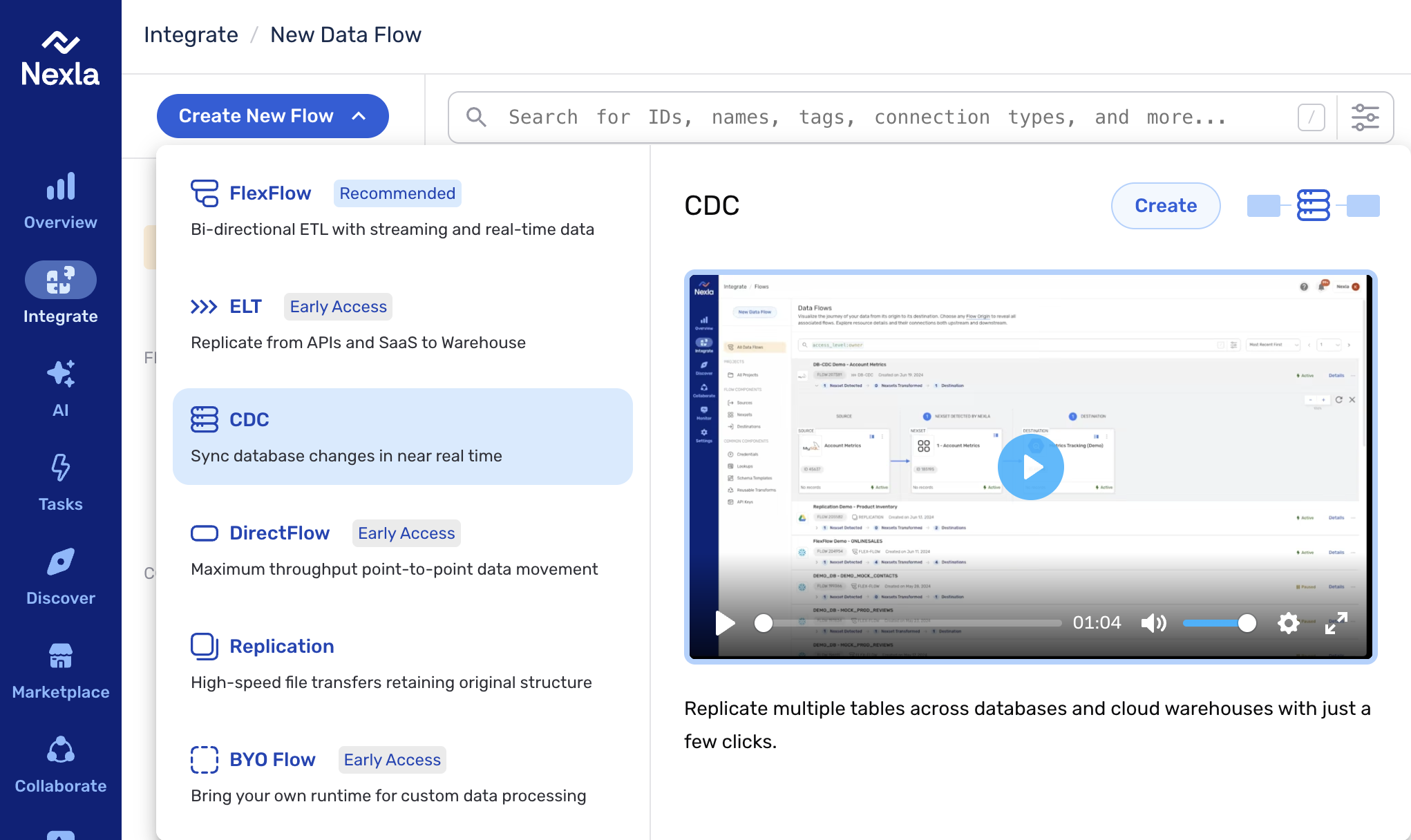
1. Start a CDC flow. From the Integrate section, click Create New Flow and select CDC from the list of flow types.
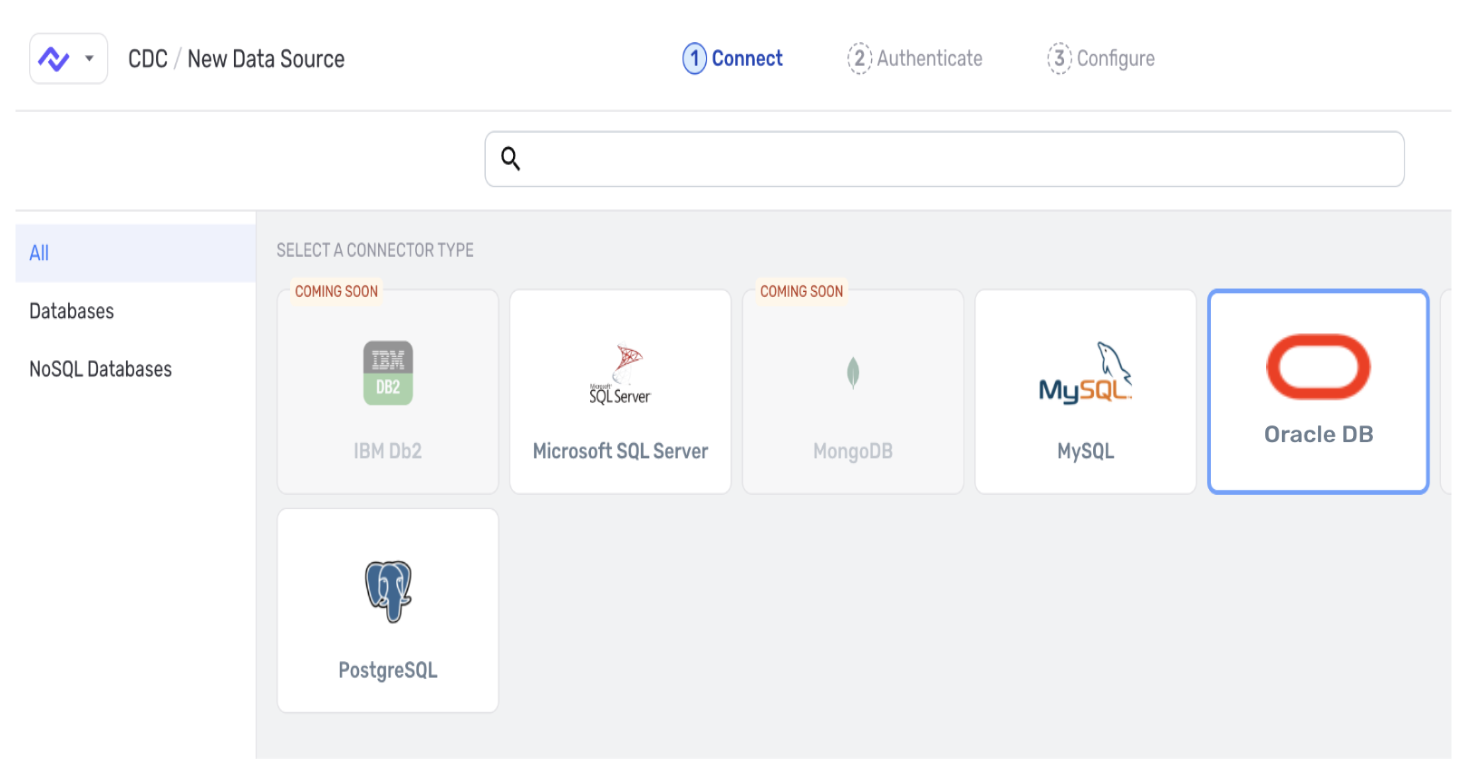
2. Select the connector type. On the Connect step, choose Oracle DB from the connector tiles.
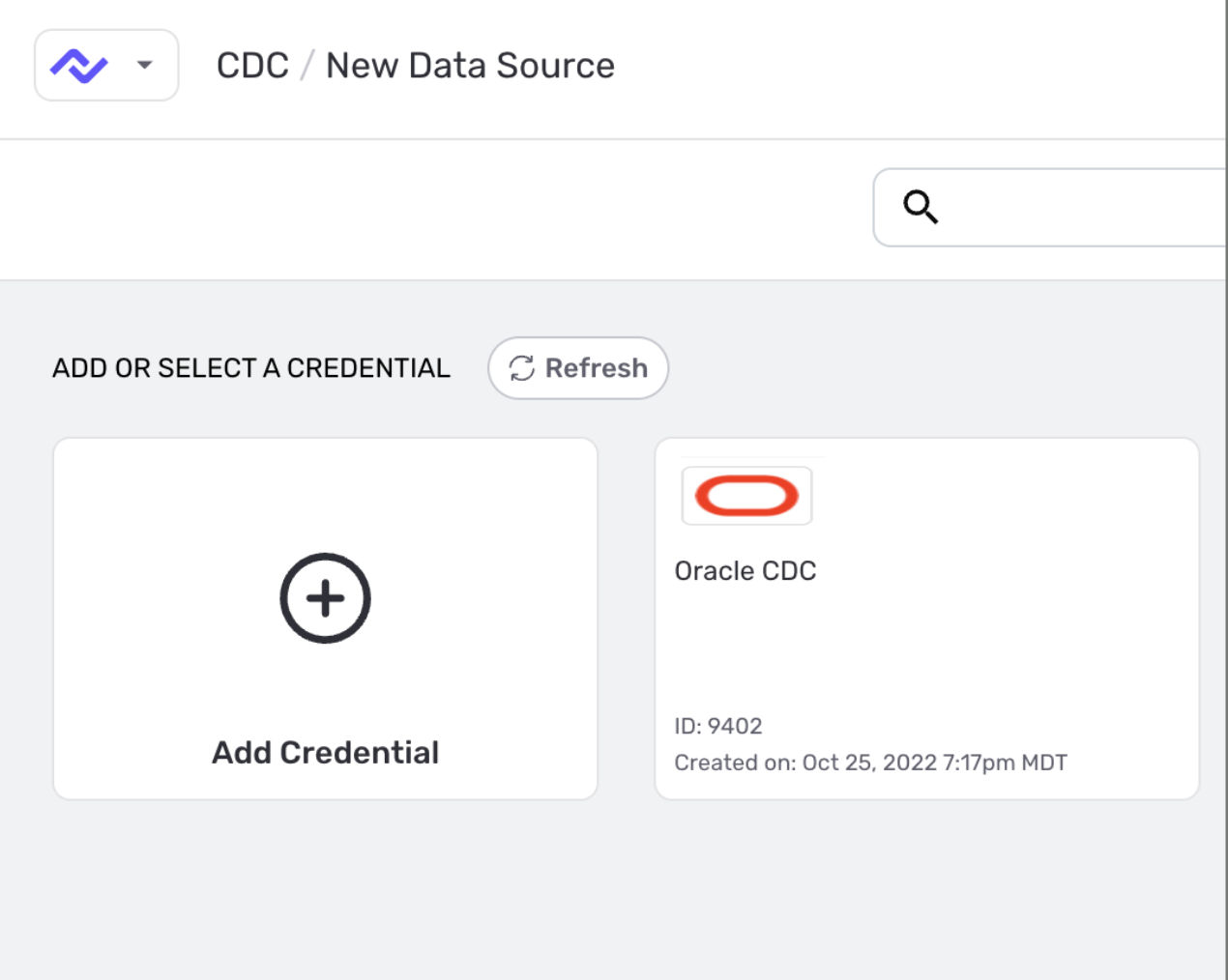
3. Authenticate with the CDC login. On the Authenticate step, select an existing Oracle credential or click Add Credential to create one using the cdc_user you create in Section 1 below.
4. Configure the source. On the Configure step (the last step before the source is created), give the source a name, set the Replication frequency (how often Nexla scans for changes — optionally pin a specific time with Set Time), and choose the Schema selection mode: Automatic to include every available table, or Select by name to include/exclude specific tables.
After saving the source, follow the destination setup steps on the DB-CDC Data Flows page.
1. Create the CDC User
Create a dedicated Oracle user for the Nexla CDC connector. This user should not be shared with any application workload.
CREATE USER cdc_user IDENTIFIED BY <password>;
GRANT CREATE SESSION TO cdc_user;
Choose a strong password and store it in your secrets manager. The CREATE SESSION grant is the minimum required for database login — do not grant DBA or other broad administrative roles.
2. Grant Required Privileges
Grant the minimum system-level privileges needed for LogMiner-based CDC:
-- LogMiner read access
GRANT LOGMINING TO cdc_user;

-- Transaction visibility for consistent change capture
GRANT SELECT ANY TRANSACTION TO cdc_user;

-- Required for LogMiner data dictionary access
GRANT EXECUTE_CATALOG_ROLE TO cdc_user;
Avoid granting broad privileges such as SELECT ANY TABLE or SELECT ANY DICTIONARY unless specifically required by your environment. Grant only what is listed here.
3. Grant Access to Required System Views
These V$ views are queried by the Nexla CDC connector to read log metadata, database configuration, and character set information:
GRANT SELECT ON V_$DATABASE        TO cdc_user;
GRANT SELECT ON V_$LOG             TO cdc_user;
GRANT SELECT ON V_$LOGFILE         TO cdc_user;
GRANT SELECT ON V_$ARCHIVED_LOG    TO cdc_user;
GRANT SELECT ON V_$THREAD          TO cdc_user;
GRANT SELECT ON V_$PARAMETER       TO cdc_user;
GRANT SELECT ON V_$NLS_PARAMETERS  TO cdc_user;
GRANT SELECT ON V_$TIMEZONE_NAMES  TO cdc_user;
In some environments, access to V_$TRANSACTION may also be required. Grant it if the connector reports permission errors on transaction-related queries:
GRANT SELECT ON V_$TRANSACTION TO cdc_user;
4. Grant Access to LogMiner Packages
The connector uses these two DBMS packages to start LogMiner sessions and load the data dictionary:
GRANT EXECUTE ON DBMS_LOGMNR   TO cdc_user;
GRANT EXECUTE ON DBMS_LOGMNR_D TO cdc_user;
5. Grant Access to Application Tables
Grant SELECT access only to the specific tables that need to be captured. Do not grant schema-wide or database-wide table access.
-- Repeat for each table included in CDC
GRANT SELECT ON <schema_name>.<table_name> TO cdc_user;
Run this statement once for every table you want Nexla to capture. Replace <schema_name> and <table_name> with the actual schema and table identifiers. Granting SELECT ANY TABLE is not recommended.
6. Enable Required Database Settings
These settings must be configured at the database level by a DBA with SYSDBA or ALTER DATABASE privileges.
Enable Supplemental Logging
Supplemental logging ensures that enough information is written to redo logs for the CDC connector to reconstruct row changes:
-- Minimum required
ALTER DATABASE ADD SUPPLEMENTAL LOG DATA;

-- Recommended: enables full column capture for all changes
ALTER DATABASE ADD SUPPLEMENTAL LOG DATA (ALL) COLUMNS;
Without ALL COLUMNS supplemental logging, only the primary key columns are included in UPDATE and DELETE redo records. Full column logging ensures the connector can capture before and after values for all columns, which is required for complete CDC event payloads.
Verify Archive Log Mode
Oracle CDC requires the database to be in ARCHIVELOG mode. Run the following to check:
ARCHIVE LOG LIST;
If the output shows Database log mode: No Archive Mode, CDC cannot function correctly. Enabling ARCHIVELOG mode requires a DBA to restart the database in mount mode. Contact your DBA or cloud provider to enable it.
Verify Supplemental Logging
Confirm supplemental logging is active with this query:
SELECT LOG_MODE,
       SUPPLEMENTAL_LOG_DATA_MIN,
       SUPPLEMENTAL_LOG_DATA_ALL
FROM   V$DATABASE;
LOG_MODE should return ARCHIVELOG. SUPPLEMENTAL_LOG_DATA_MIN and SUPPLEMENTAL_LOG_DATA_ALL should both return YES.
7. Permission Reference
The table below describes every privilege granted in Sections 1 through 5 and why it is required.
| Privilege | Type | Purpose |
|---|---|---|
CREATE SESSION | System | Allows the CDC user to connect to the Oracle database. |
LOGMINING | System | Grants access to LogMiner functionality required to read redo and archive logs. |
SELECT ANY TRANSACTION | System | Provides visibility into active transactions for consistent change capture. |
EXECUTE_CATALOG_ROLE | Role | Required for LogMiner to access the data dictionary when reading log files. |
SELECT ON V_$DATABASE | Object | Used to determine database characteristics and current SCN. |
SELECT ON V_$LOG | Object | Lists online redo log groups and their status. |
SELECT ON V_$LOGFILE | Object | Identifies physical locations of redo log files. |
SELECT ON V_$ARCHIVED_LOG | Object | Provides metadata about archive log files needed for historical change capture. |
SELECT ON V_$THREAD | Object | Used in RAC environments to identify redo threads. |
SELECT ON V_$PARAMETER | Object | Reads database configuration parameters relevant to logging. |
SELECT ON V_$NLS_PARAMETERS | Object | Determines character set and locale settings for correct data encoding. |
SELECT ON V_$TIMEZONE_NAMES | Object | Required for correct timestamp interpretation in CDC events. |
EXECUTE ON DBMS_LOGMNR | Object | Core LogMiner package — used to start, add logs to, and stop LogMiner sessions. |
EXECUTE ON DBMS_LOGMNR_D | Object | LogMiner dictionary package — used to build and load the log dictionary. |
SELECT ON <schema>.<table> | Object | Read access to each specific application table included in CDC. Granted per table. |
8. Validation Checklist
Before enabling the Nexla CDC connector, confirm all of the following are in place:
| # | Check | Verification Query / Command |
|---|---|---|
| 1 | CDC user can connect | CONNECT cdc_user/<password>@<db> |
| 2 | Supplemental logging enabled | SELECT LOG_MODE, SUPPLEMENTAL_LOG_DATA_MIN FROM V$DATABASE; |
| 3 | Archive log mode active | ARCHIVE LOG LIST; |
| 4 | Application tables accessible | SELECT COUNT(*) FROM <schema>.<table>; |
| 5 | LogMiner packages executable | EXEC DBMS_LOGMNR.START_LOGMNR(OPTIONS => DBMS_LOGMNR.DICT_FROM_ONLINE_CATALOG); |
| 6 | System views accessible | SELECT NAME FROM V$DATABASE; SELECT * FROM V$LOG; |
Where possible, run validation queries while connected as cdc_user, not as a DBA. This confirms the grants are effective from the connector's perspective, not just visible from an admin account.
9. Complete Setup Script
The full setup script combining all steps. Replace all placeholders before running. Run as a DBA or user with SYSDBA privileges.
-- ============================================================
-- Nexla Oracle CDC Setup — Complete Script
-- Replace <password>, <schema_name>, <table_name>
-- Run as DBA / SYSDBA
-- ============================================================

-- 1. Create CDC user
CREATE USER cdc_user IDENTIFIED BY <password>;
GRANT CREATE SESSION TO cdc_user;

-- 2. System privileges
GRANT LOGMINING            TO cdc_user;
GRANT SELECT ANY TRANSACTION TO cdc_user;
GRANT EXECUTE_CATALOG_ROLE TO cdc_user;

-- 3. System view access
GRANT SELECT ON V_$DATABASE        TO cdc_user;
GRANT SELECT ON V_$LOG             TO cdc_user;
GRANT SELECT ON V_$LOGFILE         TO cdc_user;
GRANT SELECT ON V_$ARCHIVED_LOG    TO cdc_user;
GRANT SELECT ON V_$THREAD          TO cdc_user;
GRANT SELECT ON V_$PARAMETER       TO cdc_user;
GRANT SELECT ON V_$NLS_PARAMETERS  TO cdc_user;
GRANT SELECT ON V_$TIMEZONE_NAMES  TO cdc_user;
-- Optional: GRANT SELECT ON V_$TRANSACTION TO cdc_user;

-- 4. LogMiner packages
GRANT EXECUTE ON DBMS_LOGMNR   TO cdc_user;
GRANT EXECUTE ON DBMS_LOGMNR_D TO cdc_user;

-- 5. Application table access (repeat per table)
GRANT SELECT ON <schema_name>.<table_name> TO cdc_user;

-- 6. Enable supplemental logging
ALTER DATABASE ADD SUPPLEMENTAL LOG DATA;
ALTER DATABASE ADD SUPPLEMENTAL LOG DATA (ALL) COLUMNS;

-- 7. Verify archive log mode and supplemental logging
ARCHIVE LOG LIST;
SELECT LOG_MODE, SUPPLEMENTAL_LOG_DATA_MIN, SUPPLEMENTAL_LOG_DATA_ALL
FROM   V$DATABASE;
10. Additional Notes
Managed & Cloud Oracle Environments
- Some managed Oracle environments (Oracle Cloud, AWS RDS for Oracle) may restrict access to certain
V$views or system packages. - If a required view is inaccessible, contact your cloud provider or DBA to request the appropriate access.
- On Oracle RDS, supplemental logging can be enabled via the
rdsadmin.rdsadmin_util.alter_supplemental_loggingprocedure.
RAC (Real Application Clusters)
- On RAC deployments, ensure
V_$THREADaccess is granted so the connector can identify all redo threads. - Archive logs from all nodes must be accessible from a single location for LogMiner to function correctly.
If Permission Errors Occur
- For errors referencing the data dictionary, try:
GRANT SELECT ANY DICTIONARY TO cdc_user; - For errors on
V_$TRANSACTIONqueries, add:GRANT SELECT ON V_$TRANSACTION TO cdc_user; - Always test grants by connecting as
cdc_user, not as a DBA, to confirm they are effective.
Contact Nexla Support at support@nexla.com with your Oracle version, whether you are on a managed or self-hosted environment, and the full error message and query that failed.