Authorization

Github
Prerequisites
Before creating a GitHub credential, you need to have a GitHub account with API access enabled. GitHub uses OAuth 2.0 authentication to securely authenticate API requests.
To set up OAuth 2.0 authentication for GitHub, you need to have a GitHub account. The OAuth 2.0 authorization flow allows Nexla to access your GitHub account on your behalf. Alternatively, you can use a GitHub personal access token (PAT) for authentication, which provides similar access without the OAuth flow. For detailed information about GitHub API authentication and setup, refer to the GitHub API documentation.
Create a GitHub Credential
- To create a new GitHub credential, after selecting the data source/destination type, click the Add Credential tile to open the Add New Credential overlay.
New Credential Overlay – GitHub
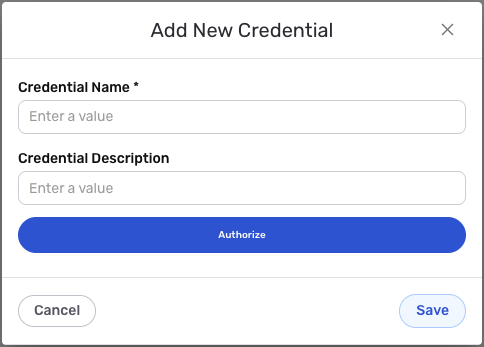
Credential Name & Description
-
Enter a name for the credential in the Credential Name field and a short, meaningful description in the Credential Description field.
Resource descriptions are recommended but are not required. They should be used provide information about the resource purpose, data freshness, etc. that can help the owner and other users efficiently understand and utilize the resource.
OAuth 2.0 Authentication
GitHub uses OAuth 2.0 authentication with Nexla's public application. The OAuth 2.0 authorization flow is handled automatically by Nexla, and most OAuth settings are pre-configured.
-
Click the Authorize button to start the OAuth 2.0 authorization flow. You will be redirected to GitHub's authorization page where you can sign in to your GitHub account and grant permissions to Nexla.
The OAuth 2.0 authorization flow allows Nexla to access your GitHub account on your behalf. You will be asked to grant permissions for accessing your GitHub repositories and data. The authorization process is handled automatically by Nexla, and you will be redirected back to Nexla once authorization is complete. The access token is sent in the
Authorizationheader with theBearerprefix (e.g.,Bearer {token}) for all API requests to the GitHub API. For detailed information about GitHub OAuth 2.0 setup and available scopes, see the GitHub API documentation.
Save the Credential
-
Once all of the relevant steps in the above sections have been completed, click the Save button at the bottom of the overlay to save the configured credential.
-
The newly added credential will now appear in a tile on the Authenticate screen during data source/destination creation and can be selected for use with a new data source or destination.