Authorization

Google BigQuery API
Prerequisites
Before creating a Google BigQuery API credential, you need to have a Google Cloud Platform (GCP) account with BigQuery API enabled and create OAuth2 credentials (Client ID and Client Secret) in the Google Cloud Console. The OAuth2 credentials are required to authenticate with the Google BigQuery API.
To obtain your OAuth2 credentials, follow these steps:
-
Sign in to the Google Cloud Console with your Google account.
-
Create a new project or select an existing project:
- Click the project dropdown at the top of the page.
- Click New Project to create a new project, or select an existing project from the list.
- Provide a project name and click Create.
-
Enable the BigQuery API for your project:
- Navigate to APIs & Services > Library in the Google Cloud Console.
- Search for "BigQuery API" and click on it.
- Click Enable to enable the BigQuery API for your project.
-
Configure the OAuth2 consent screen:
- Navigate to APIs & Services > OAuth consent screen.
- Select External (unless you're using a Google Workspace account, in which case you can select Internal).
- Fill in the required application information (app name, user support email, developer contact information).
- Add the required scopes. For BigQuery API access, add the scope
https://www.googleapis.com/auth/bigquery. - Click Save and Continue through the remaining steps.
-
Create OAuth2 credentials:
- Navigate to APIs & Services > Credentials.
- Click Create Credentials > OAuth client ID.
- Select Web application as the application type.
- Provide a name for your OAuth client.
- Add authorized redirect URIs if required (Nexla will handle the OAuth flow).
- Click Create to generate your OAuth2 credentials.
- Copy the Client ID and Client Secret immediately, as the Client Secret may not be displayed again.
-
Store the Client ID and Client Secret securely, as you will need them to configure your Nexla credential.
The OAuth2 credentials are used to authenticate API requests to the BigQuery API. The default scope for BigQuery API access is https://www.googleapis.com/auth/bigquery, which provides full access to BigQuery datasets and tables. You can use more restrictive scopes if you only need read-only access or specific permissions. The OAuth2 flow will redirect you to Google's authorization page where you'll sign in and grant permissions. For detailed information about creating OAuth2 credentials, setting up BigQuery API access, and managing permissions, refer to the Google Cloud documentation, Google OAuth2 documentation, and Google Cloud IAM documentation.
Create a Google BigQuery API Credential
- To create a new Google BigQuery API credential, after selecting the data source/destination type, click the Add Credential tile to open the Add New Credential overlay.
New Credential Overlay – Google BigQuery API
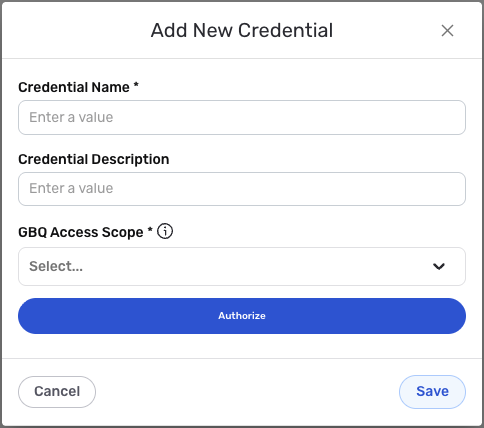
Credential Name & Description
-
Enter a name for the credential in the Credential Name field and a short, meaningful description in the Credential Description field.
Resource descriptions are recommended but are not required. They should be used provide information about the resource purpose, data freshness, etc. that can help the owner and other users efficiently understand and utilize the resource.
OAuth2 Authentication
Google BigQuery API uses OAuth2 authentication for all API requests. The credential uses the standard Google OAuth2 flow to obtain access tokens that are used to authenticate each API call.
-
Enter the OAuth2 access scope in the GBQ Access Scope field. The default value is
https://www.googleapis.com/auth/bigqueryif not specified. This scope grants access to read and write data in BigQuery datasets and tables. The scope determines what permissions your application will have when accessing BigQuery resources.The OAuth2 access scope determines what permissions your application will have when accessing BigQuery resources. The default scope
https://www.googleapis.com/auth/bigqueryprovides full access to BigQuery datasets and tables, including the ability to read and write data, create and delete datasets and tables, and manage jobs. You can use more restrictive scopes if you only need read-only access or specific permissions. For detailed information about available scopes and permissions, see the Google BigQuery API documentation and Google OAuth2 scopes documentation. -
Click the Authorize button to begin the OAuth2 authorization flow. This will redirect you to Google's authorization page where you will be asked to sign in with your Google account and grant permissions to access your BigQuery resources.
During the OAuth2 authorization flow, you will be redirected to Google's authorization page. You must sign in with a Google account that has access to the BigQuery projects and datasets you want to use. After signing in, you will be asked to grant permissions to access BigQuery resources based on the scope you configured. The permissions you grant determine what actions the application can perform with your BigQuery data. Once you grant permissions, you will be redirected back to Nexla, and the authorization will be completed automatically.
-
After completing the OAuth2 authorization flow, Nexla will automatically obtain and store the access token and refresh token needed to authenticate API requests. The access token is used to authenticate each API request, and the refresh token is used to obtain new access tokens when the current access token expires.
OAuth2 access tokens expire after a certain period for security reasons. Nexla automatically refreshes expired access tokens using the refresh token, so you typically do not need to re-authorize unless you revoke access or the refresh token expires. The access token is sent in the
Authorizationheader with theBearerprefix for all API requests to the Google BigQuery API. The application must have the appropriate permissions in your Google Cloud project to perform the actions you want to use. For detailed information about OAuth2 authentication, token management, and BigQuery API permissions, see the Google Cloud documentation and Google OAuth2 documentation.
Save the Credential
-
Once all of the relevant steps in the above sections have been completed, click the Save button at the bottom of the overlay to save the configured credential.
-
The newly added credential will now appear in a tile on the Authenticate screen during data source/destination creation and can be selected for use with a new data source or destination.