Authorization

Discord
Prerequisites
Before creating a Discord credential, you need to have a Discord account and create a Discord application (bot) in the Discord Developer Portal to obtain OAuth2 credentials (Client ID and optionally Client Secret). The OAuth2 credentials are required to authenticate with the Discord API.
To obtain your OAuth2 credentials, follow these steps:
-
Sign in to your Discord account and navigate to the Discord Developer Portal.
-
Click New Application to create a new Discord application. Provide a name for your application (this will be the name of your bot) and click Create.
-
In your application settings, navigate to the OAuth2 section to view your OAuth2 credentials:
- Client ID: This is automatically generated and is required for all Discord bot authentication. Copy this value as you will need it for your credential.
- Client Secret: This is also automatically generated. The Client Secret is only required when using scopes beyond the
botscope. If you're only using thebotscope (which is the default), you may not need the Client Secret. Click Reset Secret if you need to generate a new one, but note that this will invalidate any existing secrets.
-
Navigate to the Bot section to configure your bot:
- Click Add Bot if you haven't already created a bot for this application.
- Configure bot settings such as the bot's username and icon.
- Under Privileged Gateway Intents, enable any intents your bot needs (if applicable).
-
In the OAuth2 > URL Generator section, you can generate an invite URL for your bot. Select the
botscope and the permissions your bot needs (such asRead Messages,Send Messages,View Channels, etc.). The permissions you select here determine what actions your bot can perform in Discord servers. -
To obtain a channel ID (required for the credential), enable Developer Mode in Discord:
- Open Discord and go to User Settings > Advanced.
- Enable Developer Mode.
- Right-click on any channel in a Discord server and select Copy ID to get the channel ID.
The Client ID is required for all Discord bot authentication. The Client Secret is only required when using scopes beyond the bot scope. The OAuth2 credentials are used to authenticate API requests. Bot permissions control what actions the bot can perform in Discord servers, such as reading messages, sending messages, and managing channels. For detailed information about creating Discord applications, setting up OAuth2 credentials, and configuring bot permissions, refer to the Discord Developer Portal, Discord OAuth2 documentation, and Discord Permissions documentation.
Create a Discord Credential
- To create a new Discord credential, after selecting the data source/destination type, click the Add Credential tile to open the Add New Credential overlay.
New Credential Overlay – Discord
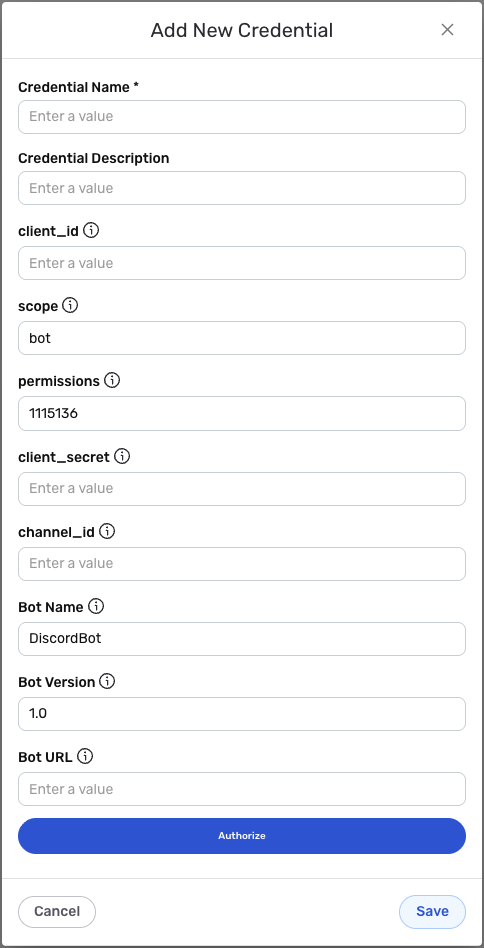
Credential Name & Description
-
Enter a name for the credential in the Credential Name field and a short, meaningful description in the Credential Description field.
Resource descriptions are recommended but are not required. They should be used provide information about the resource purpose, data freshness, etc. that can help the owner and other users efficiently understand and utilize the resource.
OAuth2 Bot Authentication
Discord uses OAuth2 authentication for bot accounts. The credential uses the bot scope by default, which is the most common authentication method for Discord bots. You can also configure additional scopes if needed.
-
Enter your Discord Client ID in the client_id field. This is the Client ID you obtained from your Discord application settings in the Discord Developer Portal. The Client ID is required for all Discord bot authentication.
-
Enter the Discord access scope in the scope field. The default value is
botif not specified. Thebotscope is the standard scope for Discord bot authentication. If you need additional scopes beyondbot, you can specify them here, but you will also need to provide a Client Secret. -
Enter the permissions value in the permissions field. This should be a string representation of a bigint permissions value. The default value is
1115136, which includesREAD_MESSAGE_HISTORY,VIEW_CHANNEL, andSEND_MESSAGESpermissions. The permissions determine what actions your bot can perform in Discord servers.The permissions value is a numeric representation of Discord bot permissions. The default value (
1115136) includes the most commonly needed permissions for reading and sending messages. You can calculate custom permission values using Discord's permission calculator or by combining permission flags. The permissions you specify here determine what actions your bot can perform when it's added to Discord servers. For detailed information about Discord bot permissions and how to calculate permission values, see the Discord Permissions documentation. -
Enter the channel ID in the channel_id field. This is the unique identifier for a Discord channel. The channel ID is used during credentials validation and for the read messages endpoint. You can obtain a channel ID by enabling Developer Mode in Discord and right-clicking on a channel to copy its ID.
-
Enter the bot name in the Bot Name field. This is used for the User-Agent header in API requests. The default value is
DiscordBotif not specified. -
Enter the bot version in the Bot Version field. This is used in the User-Agent header in API requests. The default value is
1.0if not specified. -
Enter the bot URL in the Bot URL field. This is the URL where users go to add your bot to their guild (server). This is also used in the User-Agent header in API requests.
-
Optionally, enter a Client Secret in the client_secret field if you are using scopes beyond the
botscope. The Client Secret is only required when using additional scopes beyondbot. If you are only using thebotscope, you can leave this field empty. -
Click the Authorize button to begin the OAuth2 authorization flow. This will redirect you to Discord's authorization page where you will be asked to authorize the bot and grant permissions to access Discord servers and channels.
During the OAuth2 authorization flow, you will be redirected to Discord's authorization page. You must sign in with a Discord account that has permission to add bots to Discord servers. After signing in, you will be asked to select a server (guild) where you want to add the bot and grant the permissions you specified. The permissions you configured determine what actions the bot can perform. Once you grant permissions, you will be redirected back to Nexla, and the authorization will be completed automatically.
-
After completing the OAuth2 authorization flow, Nexla will automatically obtain and store the access token and refresh token needed to authenticate API requests. The access token is used to authenticate each API request, and the refresh token is used to obtain new access tokens when the current access token expires.
OAuth2 access tokens expire after a certain period for security reasons. Nexla automatically refreshes expired access tokens using the refresh token, so you typically do not need to re-authorize unless you revoke access or the refresh token expires. The access token is sent in the
Authorizationheader with theBearerprefix for all API requests to the Discord API. The bot must have the appropriate permissions in the Discord server to perform the actions you want to use. For detailed information about OAuth2 authentication, token management, and bot permissions, see the Discord OAuth2 documentation.
Save the Credential
-
Once all of the relevant steps in the above sections have been completed, click the Save button at the bottom of the overlay to save the configured credential.
-
The newly added credential will now appear in a tile on the Authenticate screen during data source/destination creation and can be selected for use with a new data source or destination.