Authorization

Bitbucket Server
Prerequisites
Before creating a Bitbucket Server credential, you need to obtain authentication credentials from your Bitbucket Server instance. Bitbucket Server supports Basic Authentication using either a username and password combination or a personal API key.
To use Bitbucket Server with Nexla, you need:
- Access to your Bitbucket Server instance
- A Bitbucket Server account with appropriate permissions to access the projects and repositories you want to work with
- Either your username and password, or a personal API key
Personal API keys can be created in your Bitbucket Server account settings. API keys provide a secure alternative to using passwords and can be revoked independently if needed. For detailed information about Bitbucket Server authentication and API key creation, refer to the Bitbucket Server REST API documentation.
Create a Bitbucket Server Credential
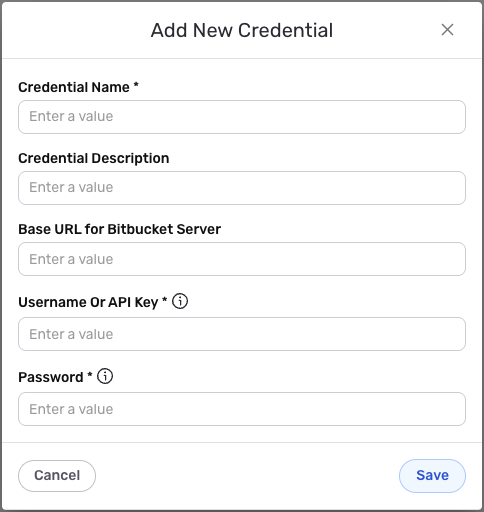
- To create a new Bitbucket Server credential, after selecting the data source/destination type, click the Add Credential tile to open the Add New Credential overlay.
New Credential Overlay – Bitbucket Server
Credential Name & Description
-
Enter a name for the credential in the Credential Name field and a short, meaningful description in the Credential Description field.
Resource descriptions are recommended but are not required. They should be used provide information about the resource purpose, data freshness, etc. that can help the owner and other users efficiently understand and utilize the resource.
Basic Authentication Configuration
-
Enter the base URL of your Bitbucket Server instance in the Base URL for Bitbucket Server field. This should be the complete URL of your Bitbucket Server instance, including the protocol (https://) but without any trailing slashes. For example:
https://bitbucket.example.com. -
Enter your Bitbucket Server username or personal API key in the Username Or API Key field. You can use either your Bitbucket Server username or a personal API key for authentication.
-
Enter your Bitbucket Server password in the Password field. If you are using a personal API key as the username, enter the API key value in this field as well. If you are using your username, enter your Bitbucket Server account password.
Keep your authentication credentials secure and do not share them publicly. The credentials provide access to your Bitbucket Server instance and should be treated as sensitive information. Personal API keys are recommended over passwords as they can be revoked independently and provide better security.
Save the Credential
-
Once all of the relevant steps in the above sections have been completed, click the Save button at the bottom of the overlay to save the configured credential.
-
The newly added credential will now appear in a tile on the Authenticate screen during data source/destination creation and can be selected for use with a new data source or destination.