Authorization

AWS Kinesis Firehose
Prerequisites
Before creating an AWS Kinesis Firehose credential, you'll need to obtain AWS credentials with appropriate permissions for Kinesis Data Firehose operations. AWS uses signature-based authentication that requires access keys and region information.
AWS Account Setup
To obtain the required AWS credentials for Kinesis Data Firehose:
-
Sign in to AWS Console: Navigate to https://aws.amazon.com/console/ and sign in to your AWS account. If you don't have an account, you can create one by clicking Create an AWS Account and following the registration process.
-
Access IAM Service: Once signed in, navigate to the IAM (Identity and Access Management) service from the AWS Services menu. IAM allows you to manage users, groups, and permissions for your AWS account.
-
Create IAM User or Use Existing: Choose one of the following approaches:
Option A: Create a New IAM User
-
In the IAM dashboard, click Users in the left navigation pane, then click Add users.
-
Enter a username for the new user (e.g.,
nexla-kinesis-firehose-user). -
Select Provide user access to the AWS Management Console if you want console access, or leave it unchecked for programmatic access only.
-
Click Next to proceed to permissions.
-
Click Attach policies directly and search for
AmazonKinesisFirehoseFullAccessin the policy search box. This managed policy provides full access to all Kinesis Data Firehose operations. Alternatively, you can create a custom policy with only the specific permissions you need. If creating a custom policy, include the following actions:firehose:CreateDeliveryStream- Required for creating new delivery streamsfirehose:DeleteDeliveryStream- Required for deleting delivery streamsfirehose:DescribeDeliveryStream- Required for retrieving delivery stream detailsfirehose:ListDeliveryStreams- Required for listing all delivery streams in your accountfirehose:PutRecord- Required for sending individual records to delivery streamsfirehose:PutRecordBatch- Required for sending batches of records to delivery streamsfirehose:UpdateDestination- Required for updating delivery stream destination configurationsfirehose:ListTagsForDeliveryStream- Required for retrieving tags associated with delivery streamsfirehose:StartDeliveryStreamEncryption- Required for enabling encryption on delivery streamsfirehose:StopDeliveryStreamEncryption- Required for disabling encryption on delivery streams
-
Click Next to review, then click Create user.
Option B: Use Existing IAM User
-
In the IAM dashboard, click Users in the left navigation pane.
-
Select the existing user you want to use for Nexla.
-
Click the Permissions tab and ensure the user has the necessary Kinesis Data Firehose permissions listed above.
-
-
Create Access Keys: After selecting or creating a user:
-
Click on the user name to open the user details page.
-
Click the Security credentials tab.
-
Scroll to the Access keys section and click Create access key.
-
Select Application running outside AWS as the use case, then click Next.
-
Optionally add a description tag, then click Create access key.
-
Important: Copy both the Access key ID and Secret access key immediately. The secret key will not be shown again. Store these securely.
-
The Access key ID and Secret access key are sensitive credentials that should be kept secure. Store them in a secure location, as you'll need them when creating the credential in Nexla. Never share these credentials publicly or commit them to version control systems.
-
Determine AWS Region: Identify the AWS region where your Kinesis Data Firehose delivery streams are located or where you want to create them. The region determines which AWS data center will handle your API requests. Common regions include:
us-east-1(US East - N. Virginia)us-west-2(US West - Oregon)eu-west-1(Europe - Ireland)ap-southeast-1(Asia Pacific - Singapore)
You can find your region in the AWS Console header (top right corner) or by checking your existing Kinesis Data Firehose stream configuration. The region you select should match the region where your delivery streams are located or where you plan to create them.
-
Determine Service Name: The service name for Kinesis Data Firehose is
firehose. This value is used as part of the AWS Signature Version 4 authentication process. The service name tells AWS which service you're authenticating to and is required for proper request signing. -
Determine Base URL: The base URL for Kinesis Data Firehose API follows the pattern
https://firehose.{region}.amazonaws.com, where{region}is your AWS region identifier. For example:- For
us-east-1region:https://firehose.us-east-1.amazonaws.com - For
us-west-2region:https://firehose.us-west-2.amazonaws.com - For
eu-west-1region:https://firehose.eu-west-1.amazonaws.com
This base URL is the endpoint that will receive all your Kinesis Data Firehose API requests. Ensure the region in the URL matches the region where your resources are located.
- For
For complete information about AWS IAM and managing access keys, see the AWS IAM User Guide. For Kinesis Data Firehose API authentication details, see the AWS Kinesis Data Firehose API Reference.
API Access Requirements
AWS Kinesis Data Firehose API access requires:
- Valid AWS Account: You must have an active AWS account
- IAM User with Access Keys: An IAM user with programmatic access and appropriate permissions
- AWS Access Key ID: The access key identifier for your IAM user
- AWS Secret Access Key: The secret key for your IAM user
- AWS Region: The AWS region where your Kinesis Data Firehose resources are located
- Service Name: The AWS service name (
firehosefor Kinesis Data Firehose) - Base URL: The regional endpoint URL for the Kinesis Data Firehose API
- Optional Session Token: If using temporary credentials (e.g., from AWS STS), a session token may be required
The AWS Kinesis Data Firehose API uses AWS Signature Version 4 authentication, which requires signing each request with your access keys. Nexla handles this signature process automatically when you provide your credentials.
Create an AWS Kinesis Firehose Credential
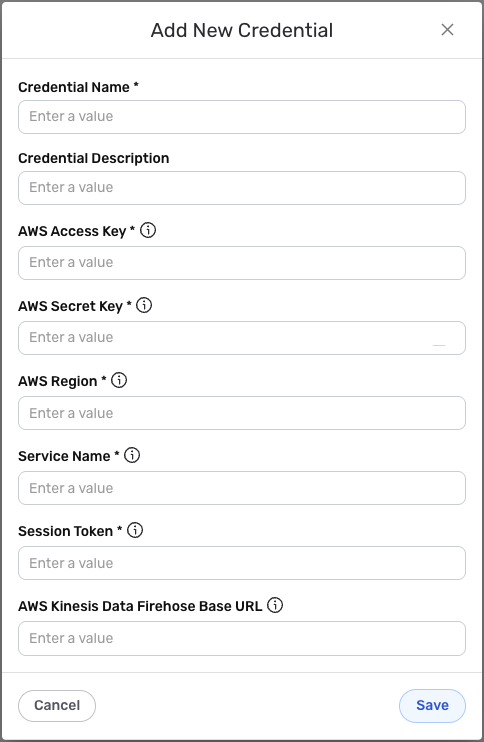
- To create a new AWS Kinesis Firehose credential, after selecting the data source/destination type, click the Add Credential tile to open the Add New Credential overlay.
New Credential Overlay – AWS Kinesis Data Firehose API
Credential Name & Description
-
Enter a name for the credential in the Credential Name field and a short, meaningful description in the Credential Description field.
Resource descriptions are recommended but are not required. They should be used to provide information about the resource purpose, data freshness, etc. that can help the owner and other users efficiently understand and utilize the resource.
AWS Signature Authentication Configuration
-
AWS Access Key: Enter your AWS Access Key ID in the AWS Access Key field. This unique identifier authenticates your IAM user with AWS services. You can find this value in your IAM user's security credentials section.
-
AWS Secret Key: Enter your AWS Secret Access Key in the AWS Secret Key field. This confidential key is used to securely sign API requests using AWS Signature Version 4. The secret key should be kept secure and never shared.
-
AWS Region: Enter the AWS region where your Kinesis Data Firehose delivery streams are located in the AWS Region field. Common regions include
us-east-1,us-west-2,eu-west-1,ap-southeast-1, etc. The region determines which AWS endpoint will be used for API requests. -
Service Name: Enter the AWS service name in the Service Name field. For Kinesis Data Firehose, this should be
firehose. This value is used as part of the AWS signature authentication process. -
Session Token: If you are using temporary credentials (e.g., from AWS STS or assumed roles), enter the session token in the Session Token field. For permanent IAM user credentials, this field can be left empty. Session tokens are required when using temporary security credentials and are added to requests as the
x-amz-access-tokenheader. -
AWS Kinesis Data Firehose Base URL: Enter the base URL for the Kinesis Data Firehose API in the AWS Kinesis Data Firehose Base URL field. The URL should follow the pattern
https://firehose.{region}.amazonaws.com, where{region}is your AWS region (e.g.,https://firehose.us-east-1.amazonaws.com). This URL is required for authenticating requests to the Kinesis Data Firehose API.
The AWS credentials are sensitive information that should be kept secure. Nexla will store these credentials securely and use them only for API authentication purposes. Ensure your IAM user has the minimum required permissions for the operations you need to perform. For production environments, consider using IAM roles with temporary credentials instead of permanent access keys when possible.
Save the Credential
-
Once all of the relevant steps in the above sections have been completed, click the Save button at the bottom of the overlay to save the configured credential.
-
The newly added credential will now appear in a tile on the Authenticate screen during data source/destination creation and can be selected for use with a new data source or destination.