Authorization

Aruba API
Prerequisites
Before creating an Aruba API credential, you'll need to register an OAuth 2.0 application in Aruba Central and obtain OAuth 2.0 client credentials. The Aruba Central API uses OAuth 2.0 for authentication.
Aruba Central OAuth 2.0 Setup
To obtain the required OAuth 2.0 credentials for Aruba Central:
-
Sign in to Aruba Central: Navigate to https://central.arubanetworks.com/ and sign in to your Aruba Central account. If you don't have an account, you'll need to contact your Aruba administrator or sign up for Aruba Central.
-
Access API Settings: Once signed in, navigate to the API settings or developer portal in Aruba Central. This is typically found in the account settings or developer section.
-
Register OAuth 2.0 Application: Create a new OAuth 2.0 application in Aruba Central:
- Click Create Application or Register Application
- Provide a name and description for your application
- Configure the application settings as needed
-
Obtain Client Credentials: From your registered OAuth 2.0 application, obtain the following:
- Client ID: The unique identifier for your OAuth 2.0 application
- Client Secret: The secret key associated with your application
-
Configure Redirect URI: Set up a redirect URI for your application. This URI must match the redirect URI you'll use in Nexla. The redirect URI is where Aruba Central redirects after successful authentication.
-
Obtain Refresh Token (optional): If you want to use refresh tokens for automatic token renewal, you'll need to complete the OAuth 2.0 authorization flow to obtain an initial refresh token. This is typically done through a browser-based authorization flow.
Aruba Central uses OAuth 2.0 for API authentication. The Client ID and Client Secret are used to obtain access tokens. The redirect URI must match exactly between your Aruba Central application registration and the credential configuration in Nexla. For complete information about Aruba Central API authentication, see the Aruba Central API Documentation.
API Access Requirements
Aruba Central API access requires:
- Valid Aruba Central Account: You must have an active Aruba Central account with API access enabled
- OAuth 2.0 Application: A registered OAuth 2.0 application in Aruba Central
- Client ID: The unique identifier for your OAuth 2.0 application
- Client Secret: The secret key associated with your application
- Redirect URI: The URI registered with your OAuth 2.0 application
The Aruba Central API uses OAuth 2.0 authorization code flow. Access tokens are obtained from the Aruba Central OAuth 2.0 token endpoint and are used in the Authorization header for API requests.
For complete information about Aruba Central API authentication and getting started, see the Aruba Central API Documentation.
Create an Aruba API Credential
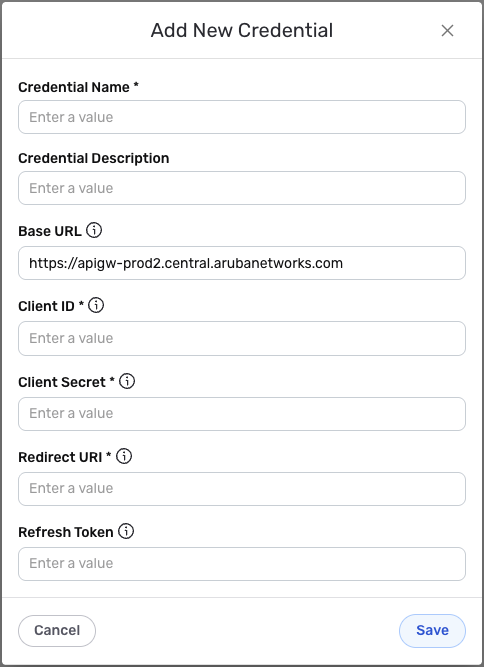
- To create a new Aruba API credential, after selecting the data source/destination type, click the Add Credential tile to open the Add New Credential overlay.
New Credential Overlay – Aruba
Credential Name & Description
-
Enter a name for the credential in the Credential Name field and a short, meaningful description in the Credential Description field.
Resource descriptions are recommended but are not required. They should be used to provide information about the resource purpose, data freshness, etc. that can help the owner and other users efficiently understand and utilize the resource.
Base URL Configuration
- Base URL: Enter the base URL for your Aruba Central API gateway in the Base URL field. The default value is
https://apigw-prod2.central.arubanetworks.com. This should match your Aruba Central deployment's API gateway URL.
OAuth 2.0 Client Credentials Configuration
-
Client ID: Enter your Aruba Central OAuth 2.0 Client ID in the Client ID field. This is the unique identifier for your OAuth 2.0 application registered in Aruba Central.
-
Client Secret: Enter your Aruba Central OAuth 2.0 Client Secret in the Client Secret field. This is the secret key associated with your OAuth 2.0 application.
-
Redirect URI: Enter the redirect URI in the Redirect URI field. This must match exactly the redirect URI registered with your OAuth 2.0 application in Aruba Central.
-
Refresh Token (optional): If you have a refresh token from a previous OAuth 2.0 authorization flow, enter it in the Refresh Token field. This token can be used to obtain new access tokens when the current token expires.
The OAuth 2.0 credentials are sensitive information that should be kept secure. Nexla will store these credentials securely and use them only for API authentication purposes. The Client ID and Client Secret are used to obtain access tokens from Aruba Central's OAuth 2.0 token endpoint. The redirect URI must match exactly between your Aruba Central application registration and this credential configuration.
Save the Credential
-
Once all of the relevant steps in the above sections have been completed, click the Save button at the bottom of the overlay to save the configured credential.
-
The newly added credential will now appear in a tile on the Authenticate screen during data source/destination creation and can be selected for use with a new data source or destination.