Authorization

Zoho
Prerequisites
Before creating a Zoho credential in Nexla, you need to set up an OAuth 2.0 integration in the Zoho Developer Console and obtain the required credentials. This integration enables programmatic access to the Zoho CRM API without requiring user interaction for each request.
OAuth 2.0 Setup
OAuth 2.0 authentication provides secure, token-based access to the Zoho CRM API with automatic token refresh. The OAuth flow allows Nexla to access your Zoho account on your behalf. For detailed information about setting up OAuth 2.0 authentication, see the Zoho CRM API documentation.
-
Access Zoho Developer Console: Sign in to your Zoho account and navigate to the Zoho Developer Console.
-
Create a Client: Create a new client application in the Zoho Developer Console. This will generate a Client ID and Client Secret that you'll use for authentication.
-
Configure OAuth Settings: Configure your OAuth client settings, including redirect URIs and scopes. The redirect URI should match the callback URL provided by Nexla during the OAuth flow.
-
Configure API Scopes: Ensure that the following scopes are requested during the OAuth flow:
ZohoCRM.modules.all- Full access to all Zoho CRM modulesZohoCRM.settings.all- Full access to Zoho CRM settingsZohoCRM.users.all- Full access to Zoho CRM usersZohoCRM.org.all- Full access to Zoho CRM organization dataZohoCRM.bulk.all- Full access to Zoho CRM bulk operationsZohoCRM.coql.read- Read access to Zoho CRM COQL queriesZohoCRM.notifications.read- Read access to Zoho CRM notificationsZohoCRM.notifications.create- Create access to Zoho CRM notificationsZohoCRM.notifications.update- Update access to Zoho CRM notifications
-
Obtain Client Credentials: Copy your Client ID and Client Secret from the OAuth client settings. These credentials are used to authenticate with the Zoho CRM API OAuth 2.0 service.
-
Determine API Domain: Identify your Zoho API domain based on your Zoho account region:
- US:
https://www.zohoapis.com - EU:
https://www.zohoapis.eu - IN:
https://www.zohoapis.in - AU:
https://www.zohoapis.com.au - JP:
https://www.zohoapis.jp - CA:
https://www.zohoapis.ca
- US:
Create a Zoho Credential
- To create a new Zoho credential, after selecting the data source/destination type, click the Add Credential tile to open the Add New Credential overlay.
New Credential Overlay – Zoho
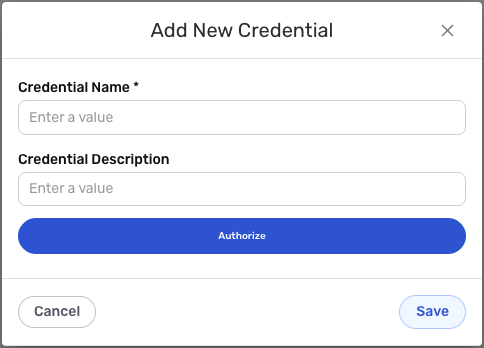
Credential Name & Description
-
Enter a name for the credential in the Credential Name field and a short, meaningful description in the Credential Description field.
Resource descriptions are recommended but are not required. They should be used provide information about the resource purpose, data freshness, etc. that can help the owner and other users efficiently understand and utilize the resource.
OAuth2 Configuration
-
Complete the OAuth authorization flow by following the prompts to authorize Nexla to access your Zoho account. The OAuth flow will automatically handle token exchange and refresh. During the authorization process, you will be redirected to Zoho to grant permissions to Nexla.
The OAuth 2.0 flow provides secure, token-based access to the Zoho CRM API with automatic token refresh. The authorization process requires you to sign in to your Zoho account and grant permissions to Nexla. For detailed information about Zoho CRM API authentication, see the Zoho CRM API documentation.
All OAuth configuration settings are automatically handled by Nexla. You only need to complete the authorization flow by clicking the Authorize button and granting permissions to Nexla in the Zoho authorization page. The OAuth flow will request the following scopes: full access to Zoho CRM modules, settings, users, organization data, bulk operations, COQL queries, and notifications.
Save the Credential
-
Once all of the relevant steps in the above sections have been completed, click the Save button at the bottom of the overlay to save the configured credential.
-
The newly added credential will now appear in a tile on the Authenticate screen during data source/destination creation and can be selected for use with a new data source or destination.