Authorization

Splunk Cloud Platform
Prerequisites
Before creating a Splunk Cloud Platform credential, you'll need to obtain an HTTP Event Collector (HEC) token from your Splunk instance. Splunk uses HEC tokens for authenticating HTTP Event Collector API requests, which allow you to send event data to Splunk.
To obtain a Splunk HEC token:
-
Log in to your Splunk instance. This could be Splunk Cloud Platform, Splunk Enterprise, or your organization's Splunk deployment.
-
Navigate to Settings > Data Inputs > HTTP Event Collector in the Splunk web interface.
-
If HTTP Event Collector is not enabled, click Global Settings and enable Enable HTTP Event Collector. Then click Save.
-
Click New Token to create a new HEC token for your application.
-
Fill in the token configuration:
- Name: Enter a descriptive name for the token (e.g., "Nexla Integration")
- Description: Optionally enter a description for the token
- Source type: Select or enter the source type for your events (e.g.,
_jsonfor JSON events) - Index: Select the index where events should be stored
- App context: Select the app context if needed
-
Click Next to review the token settings, then click Submit to create the token.
-
Copy the Token Value immediately after creation, as it may only be displayed once for security purposes. Store it securely, as you'll need it to authenticate API requests.
-
Note your Splunk HEC Base URL. This is typically in the format:
- Splunk Cloud:
https://http-inputs-{yourinstance}.splunkcloud.com:443 - Splunk Enterprise:
https://{your-splunk-server}:8088(or your configured HEC port)
- Splunk Cloud:
Splunk HEC tokens are used as Bearer tokens in the Authorization header for all HTTP Event Collector API requests. The token value is sensitive information and should be kept secure. If you've lost your token, you can view it again in the HTTP Event Collector settings, or create a new token if needed. The token must be prefixed with "Splunk " in the Authorization header (e.g., Splunk ).{token_value}
For detailed information about Splunk HTTP Event Collector authentication and token management, refer to the Splunk HTTP Event Collector Documentation and Splunk HEC REST API Endpoints.
Create a Splunk Cloud Platform Credential
- To create a new Splunk Cloud Platform credential, after selecting the data source/destination type, click the Add Credential tile to open the Add New Credential overlay.
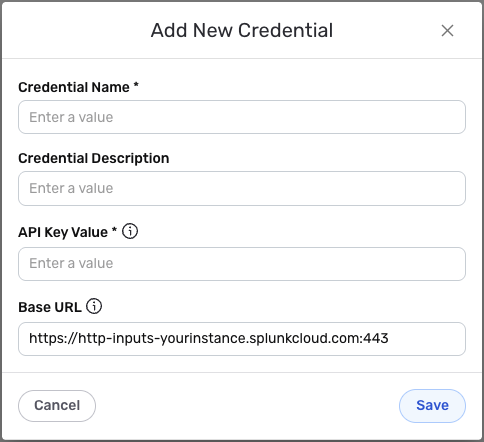
New Credential Overlay – Splunk Cloud Platform
Credential Name & Description
-
Enter a name for the credential in the Credential Name field and a short, meaningful description in the Credential Description field.
Resource descriptions are recommended but are not required. They should be used provide information about the resource purpose, data freshness, etc. that can help the owner and other users efficiently understand and utilize the resource.
Credential Settings
-
In the API Key Value field, enter the HEC token value that you obtained from your Splunk instance. This is the token used to authenticate requests to the Splunk HTTP Event Collector API.
-
In the Base URL field, enter the base URL for your Splunk HTTP Event Collector server, including the protocol (https://) and port. Common examples include:
- Splunk Cloud:
https://http-inputs-{yourinstance}.splunkcloud.com:443 - Splunk Enterprise:
https://{your-splunk-server}:8088
The API key (HEC token) is sensitive information and should be kept secure. If you've lost your token, you can view it again in the HTTP Event Collector settings in your Splunk instance. The token is used in the Authorization header with the format
Splunkfor all API requests.{token_value} - Splunk Cloud:
Save the Credential
-
Once all of the relevant steps in the above sections have been completed, click the Save button at the bottom of the overlay to save the configured credential.
-
The newly added credential will now appear in a tile on the Authenticate screen during data source/destination creation and can be selected for use with a new data source or destination.