Authorization

Optimizely
Prerequisites
Before creating an Optimizely credential, you need to ensure you have access to your Optimizely account. Optimizely uses OAuth2 3-legged authentication with Nexla's public application, which allows Nexla to access your Optimizely account on your behalf.
To prepare for OAuth2 authentication, ensure you have the following:
-
Optimizely Account Access: You must have an active Optimizely account with appropriate permissions to authorize third-party applications.
-
Account Access: You must have administrative access or appropriate permissions to authorize access to your Optimizely account.
-
OAuth Authorization: During the credential creation process, you will be redirected to Optimizely's authorization page to grant Nexla permission to access your Optimizely account. You will need to sign in with your Optimizely account and approve the authorization request.
The OAuth2 flow uses Nexla's public Optimizely application to authenticate with Optimizely. When you authorize Nexla, you grant permission for Nexla to access your Optimizely account data with the all scope, which provides full access to your Optimizely projects, experiments, and other resources. The authorization includes access to read and manage data in your Optimizely account. For detailed information about OAuth2 authentication, available scopes, and API access, refer to the Optimizely API documentation.
Create an Optimizely Credential
- To create a new Optimizely credential, after selecting the data source/destination type, click the Add Credential tile to open the Add New Credential overlay.
New Credential Overlay – Optimizely
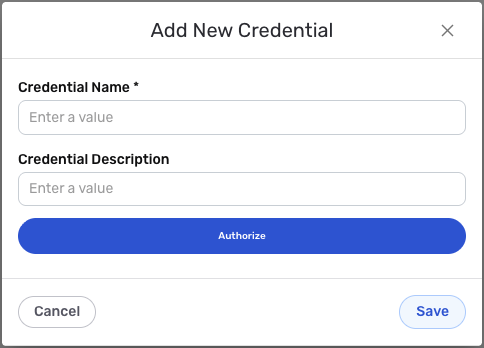
Credential Name & Description
-
Enter a name for the credential in the Credential Name field and a short, meaningful description in the Credential Description field.
Resource descriptions are recommended but are not required. They should be used provide information about the resource purpose, data freshness, etc. that can help the owner and other users efficiently understand and utilize the resource.
OAuth2 Authentication
Optimizely uses OAuth2 3-legged authentication to securely access your Optimizely account. Nexla uses a public Optimizely application to facilitate the OAuth2 flow, so you don't need to create your own OAuth2 application.
-
Click the Authorize button to begin the OAuth2 authorization process. You will be redirected to Optimizely's authorization page.
-
Sign in to your Optimizely account using your Optimizely account credentials.
-
Review the permissions that Nexla is requesting. These permissions allow Nexla to access your Optimizely account data with the
allscope, which provides full access to your Optimizely projects, experiments, and other resources. -
Click Accept or Authorize to grant Nexla permission to access your Optimizely account.
-
After authorization, you will be redirected back to Nexla, and the credential will be automatically configured with the OAuth2 tokens.
OAuth2 authentication uses Nexla's public Optimizely application to securely access your Optimizely account. When you authorize Nexla, you grant permission for Nexla to access your Optimizely account data with the
allscope, which provides full access to your Optimizely projects, experiments, and other resources. The authorization includes access to read and manage data in your Optimizely account.The OAuth2 tokens (access token and refresh token) are automatically managed by Nexla. The access token is used to authenticate API requests, and the refresh token is used to obtain new access tokens when they expire. Tokens are automatically refreshed as needed to maintain access to your Optimizely account.
If you need to revoke access, you can do so in your Optimizely account settings under Connected apps or OAuth applications. For detailed information about OAuth2 authentication, available scopes, and API access, see the Optimizely API documentation.
Save the Credential
-
Once all of the relevant steps in the above sections have been completed, click the Save button at the bottom of the overlay to save the configured credential.
-
The newly added credential will now appear in a tile on the Authenticate screen during data source/destination creation and can be selected for use with a new data source or destination.