Authorization

Ollama API
Prerequisites
Before creating an Ollama API credential, you'll need to have Ollama installed and running locally on your machine or accessible via a network URL. Ollama runs locally and does not require authentication by default, but you'll need to know the base URL where your Ollama instance is accessible.
To set up Ollama:
-
Install Ollama on your local machine or server. You can download Ollama from ollama.ai or install it using package managers.
-
Start the Ollama service. Ollama typically runs on
http://localhost:11434by default for local installations. -
If you're accessing Ollama over a network or through a tunnel (like ngrok), note the base URL where your Ollama instance is accessible. This could be:
http://localhost:11434for local accesshttps://your-domain.comfor network accesshttps://your-ngrok-url.ngrok-free.appfor tunneled access
-
Verify that Ollama is running by accessing the version endpoint:
{base_url}/api/version. This should return the Ollama version information.
Ollama runs locally and does not require authentication by default. However, if you've configured authentication for your Ollama instance, you may need to provide credentials. For most local installations, no authentication is required, and you only need to specify the base URL where Ollama is accessible.
For detailed information about Ollama installation and configuration, refer to the Ollama Documentation.
Create an Ollama API Credential
- To create a new Ollama API credential, after selecting the data source/destination type, click the Add Credential tile to open the Add New Credential overlay.
New Credential Overlay – Ollama
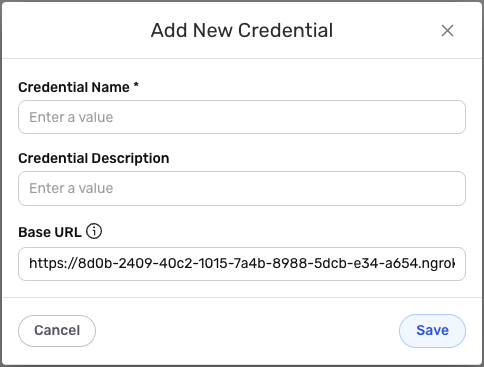
Credential Name & Description
-
Enter a name for the credential in the Credential Name field and a short, meaningful description in the Credential Description field.
Resource descriptions are recommended but are not required. They should be used provide information about the resource purpose, data freshness, etc. that can help the owner and other users efficiently understand and utilize the resource.
Credential Settings
-
In the Base URL field, enter the base URL for your locally running Ollama instance. This should be the complete URL including the protocol (http:// or https://) and port if applicable. Common examples include:
http://localhost:11434for local installationshttps://your-domain.comfor network accesshttps://your-ngrok-url.ngrok-free.appfor tunneled access
The default value is typically
http://localhost:11434for local Ollama installations. If you're using a tunnel or network-accessible Ollama instance, update this to match your Ollama instance URL. Ensure that the URL is accessible from where Nexla will be making API calls.
Save the Credential
-
Once all of the relevant steps in the above sections have been completed, click the Save button at the bottom of the overlay to save the configured credential.
-
The newly added credential will now appear in a tile on the Authenticate screen during data source/destination creation and can be selected for use with a new data source or destination.