Authorization

Medallia Journey Analytics
Prerequisites
Before creating a Medallia Journey Analytics credential, you need to obtain your API token from your Medallia Journey Analytics account. Medallia Journey Analytics uses token-based authentication for all API requests, with the API token sent in the Token header.
To obtain your Medallia Journey Analytics API token, follow these steps:
-
Sign in to your Medallia Journey Analytics account using your administrator credentials.
-
Click on the user icon in the top right corner of the Medallia Journey Analytics application.
-
Navigate to your account settings or API settings section.
-
Look for the API Token or Token section in your account settings.
-
If you don't have an API token yet, click Generate Token or Create Token to create a new API token.
-
Copy the API token immediately after it's generated, as it may not be accessible again after you navigate away from the page.
-
Store the API token securely, as you will need it to configure your Nexla credential. The API token provides access to your Medallia Journey Analytics data and should be treated as sensitive information.
The API token is sent in the Token header for all API requests to the Medallia Journey Analytics API. The token authenticates your requests and grants access to Medallia Journey Analytics resources based on your account permissions. If your API token is compromised, you should immediately revoke it in your Medallia Journey Analytics account settings and generate a new one. For detailed information about API authentication, available endpoints, and API usage, refer to the Medallia Journey Analytics API documentation.
Create a Medallia Journey Analytics Credential
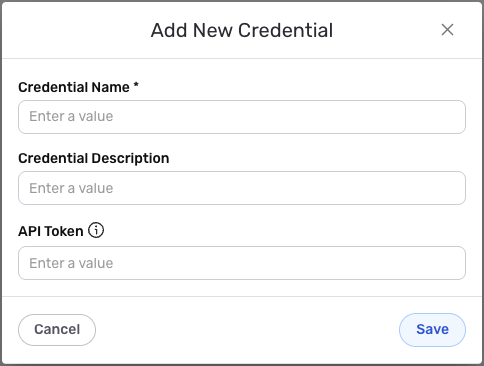
- To create a new Medallia Journey Analytics credential, after selecting the data source/destination type, click the Add Credential tile to open the Add New Credential overlay.
New Credential Overlay – Medallia Journey Analytics
Credential Name & Description
-
Enter a name for the credential in the Credential Name field and a short, meaningful description in the Credential Description field.
Resource descriptions are recommended but are not required. They should be used provide information about the resource purpose, data freshness, etc. that can help the owner and other users efficiently understand and utilize the resource.
Token Authentication
Medallia Journey Analytics uses token-based authentication for all API requests. The API token is sent in the Token header to authenticate API requests to the Medallia Journey Analytics API.
-
Enter your Medallia Journey Analytics API token in the API Token field. This is the API token you obtained from your Medallia Journey Analytics account by clicking on the user icon in the top right corner of the application. The API token is sent in the
Tokenheader for all API requests to the Medallia Journey Analytics API. The API token is sensitive information and must be kept confidential.Your Medallia Journey Analytics API token can be found in your Medallia Journey Analytics account by clicking on the user icon in the top right corner of the application. The API token is sent in the
Tokenheader for all API requests to the Medallia Journey Analytics API.If your API token is compromised, you should immediately revoke it in your Medallia Journey Analytics account settings and generate a new one. The API token provides access to your Medallia Journey Analytics data and should be treated as sensitive information. Keep your API token secure and do not share it publicly.
For detailed information about obtaining API tokens, API authentication, and available endpoints, see the Medallia Journey Analytics API documentation.
Save the Credential
-
Once all of the relevant steps in the above sections have been completed, click the Save button at the bottom of the overlay to save the configured credential.
-
The newly added credential will now appear in a tile on the Authenticate screen during data source/destination creation and can be selected for use with a new data source or destination.