Authorization

Upshop API
Prerequisites
Before creating an Upshop API credential, you'll need to obtain an API subscription key and tenant ID from your Upshop account. Upshop uses Azure API Management authentication, requiring both an Ocp-Apim-Subscription-Key header and an X-Tenant header for API access.
To obtain Upshop API credentials:
-
Log in to your Upshop account or contact your Upshop administrator to access the Upshop API portal.
-
Navigate to the API settings or developer portal. This is typically accessible from your Upshop account dashboard or through the Upshop developer portal.
-
In the API settings, locate the API Subscription Key (Ocp-Apim-Subscription-Key). This is the Azure API Management subscription key used to authenticate API requests.
-
Copy the Ocp-Apim-Subscription-Key. Store it securely, as you'll need it to authenticate API requests.
-
Locate your X-Tenant ID. This is the organization or store identifier for multi-tenant API operations. The tenant ID identifies your specific organization or store within the Upshop platform.
-
Copy the X-Tenant ID. Store it securely, as you'll need it for all API requests.
-
Note your Base URL. The default base URL for Upshop API is
https://api.upshop.com, but this may vary depending on your Upshop deployment or region.
Upshop API requires dual authentication: Ocp-Apim-Subscription-Key header + X-Tenant header. Both are mandatory for all API requests. The Ocp-Apim-Subscription-Key is used for Azure API Management authentication, and the X-Tenant header identifies your organization or store. If you're unsure about your API credentials, contact your Upshop administrator or Upshop support.
For detailed information about Upshop API authentication and credential management, refer to the Upshop API Documentation and Upshop Developer Documentation.
Create an Upshop API Credential
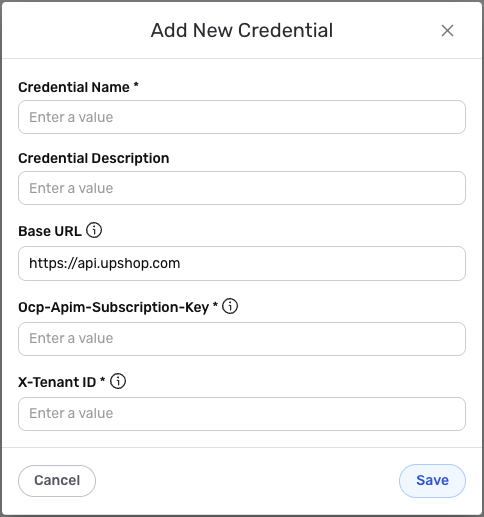
- To create a new Upshop API credential, after selecting the data source/destination type, click the Add Credential tile to open the Add New Credential overlay.
New Credential Overlay – Upshop API
Credential Name & Description
-
Enter a name for the credential in the Credential Name field and a short, meaningful description in the Credential Description field.
Resource descriptions are recommended but are not required. They should be used provide information about the resource purpose, data freshness, etc. that can help the owner and other users efficiently understand and utilize the resource.
Credential Settings
-
In the Base URL field, enter the root URL for API endpoints. The default value is
https://api.upshop.com. You can specify a different base URL if your organization uses a custom endpoint. -
In the Ocp-Apim-Subscription-Key field, enter the API subscription key that you obtained from your Upshop account. This is the Azure API Management subscription key used to authenticate API requests.
-
In the X-Tenant ID field, enter your organization or store identifier. This is the tenant ID that identifies your specific organization or store within the Upshop platform for multi-tenant API operations.
The Ocp-Apim-Subscription-Key and X-Tenant ID are sensitive information and should be kept secure. Both are required for all Upshop API requests. The Ocp-Apim-Subscription-Key is sent as a header, and the X-Tenant ID is also sent as a header to identify your organization or store.
Save the Credential
-
Once all of the relevant steps in the above sections have been completed, click the Save button at the bottom of the overlay to save the configured credential.
-
The newly added credential will now appear in a tile on the Authenticate screen during data source/destination creation and can be selected for use with a new data source or destination.